
Be a Choice List “Thief”
Do you find yourself duplicating the same choices across different forms and tables in ServiceNow? Manually updating these lists can be a real time-consuming hassle.
Here’s the good news! In my second article about powerful dictionary configurations, I will showcase a time-saving technique to reuse choice list values across your instance. This saves you time and ensures consistency in your data management. This approach is particularly beneficial for multilingual environements, as you only need to translate the main choice list.
Use case 1: Linking Catalog Variables to existing Choice Options
There is a Choice field on a table, and we need to replicate this field on a Catalog Item or Record Producer form with the same choices.
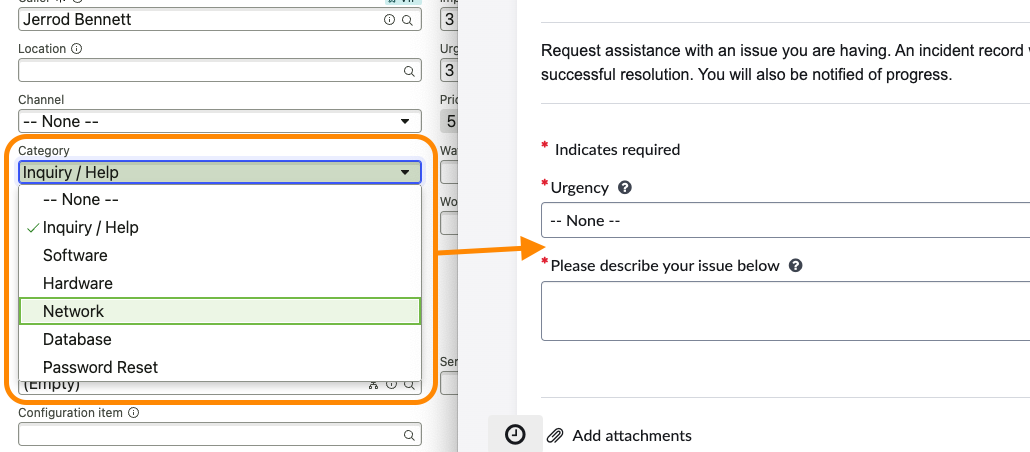
For example, adding the Incident Category drop-down to the “Create Incident” Record Producer. On the left of the screenshot below is the Incident Category field as displayed in the Service Operations Workspace, and on the right is the Create Incident Record Producer in the Employee Service Center Service Portal.
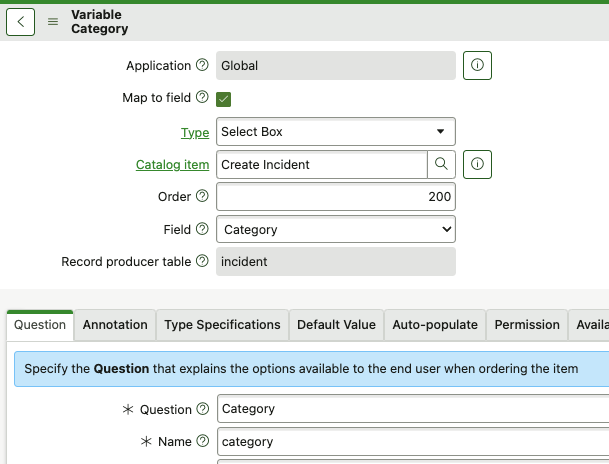
- To get these values onto the “Create Incident” Record Producer Form, create a new Select Box Variable to hold the values that need to be displayed.
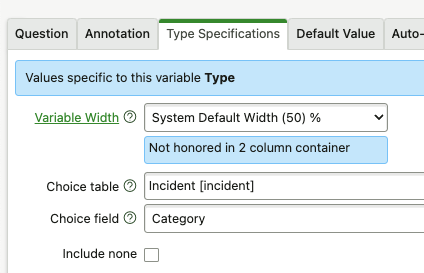
- Next, instead of creating mirror Choice options in the Question Choices Related List, navigate to the “Type Specifications” section on the Variable form. Enter the following values and save the variable:
- Choice table: Incident [incident]
- Choice field: Category
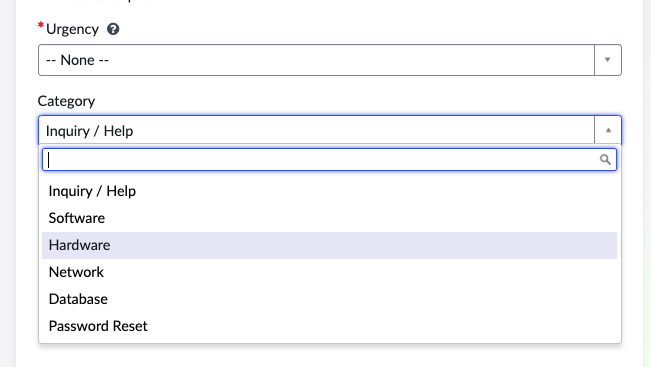
- Now when we navigate back to the form in the Service Portal, we can see that there is a new Category field on the form, and it already has Choice values that exactly match the Incident Category selections. Now if you change the available Choices for the Incident Category field, the Variable drop-down values will automatically reflect those changes without have to repeat the configuration on the Variable record.
Use case 2: Reuse Choice List values in another field
Sometimes you need to replicate a choices options across several tables and fields to create consistency as data moves from one record to another, like Asset and CI attributes that exist on both records. –OR– You have several fields on the form with the same set of Choice options. For example, a design decision to use Yes/No Choice fields instead of Checkbox fields.
- First, choose which table and field will drive the other fields options. The example will use Incident Category.
- Navigate to the Dictionary record for the other field(s) that will be driven by the Incident Categories.
- Find the Choice List Specification tab. If you don’t see the Choice table field, you may have to switch to Advanced view.
- Enter the following values and save the Dictionary record:
- Choice table: Incident [incident]
- Choice field: Category
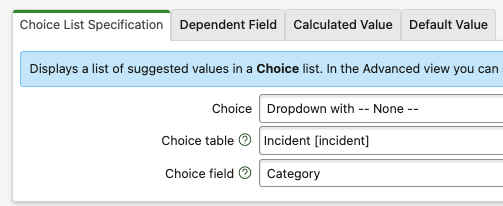
That’s it! Now, when you change the main field’s list, all of the other choice lists will reflect the change.
Summary
This article explored two simple ways to reuse choice list values in the ServiceNow platform. If you are a customer that supports multiple language, you’ve exponentially saved yourself some time, because you only have to translate the main field’s Choices and those changes will also be reflected everywhere as well.
By leveraging these techniques, you can streamline your ServiceNow configuration and save valuable time!

Date Posted:
January 7, 2025
Share This:



Fresh Content
Direct to Your Inbox
Just add your email and hit subscribe to stay informed.