
Demystifying SAML 2.0 Single Sign-On in ServiceNow
This article helps you understand the SAML 2.0 SSO setup, focusing on how ServiceNow works with an Identity Provider (IDP) like Okta. It’s essential for ServiceNow developers who need to troubleshoot SAML-related issues confidently. By breaking down the processes involved in SAML requests and responses, this guide empowers developers to resolve complex SSO problems. Whether you are dealing with well-documented identity providers or those with limited documentation, understanding the underlying mechanisms of SAML 2.0 will help you achieve smoother and more secure integrations.
As data security becomes more important, this article also helps you understand other encryption and signing processes in ServiceNow. The ServiceNow Vault application uses similar concepts, highlighting the importance of grasping these security mechanisms.
Article Roadmap
- What is the Purpose of This Article
- Basic Flow Diagram Between ServiceNow and an IDP
- Theory on SAML and Its Flow
- Understanding and Establishing Trust Between SP and IDP
- Metadata Templates with Explanations
- Manual SSO Login and Debugging with Encryption and Signing
- Using Tools to Debug SAML Requests and Responses
- Understanding SAML Request and Response Structure
- How ServiceNow Processes the SAML Response
- SSO Request and Response Without Encryption
- SAML Logout
- Conclusion
- Next Steps: OpenID Connect
What is the Purpose of This Article
ServiceNow provides excellent documentation on setting up Single Sign-On (SSO), which you can find here. Usually, you just need to configure some properties in ServiceNow and the IDP (Identity Provider, e.g., Microsoft Azure Active Directory, Okta, OneLogin, Google Cloud Identity), making the setup relatively easy. Most of the time, following their documentation will get SSO working without any issues.
However, when setting up Single Sign-On with Identity Providers that have limited or confusing documentation (e.g., public or government-owned SSO) or when the SSO setup doesn’t work as expected, understanding the background processes can help you solve difficult problems.
This article aims to solve this problem by providing a basic understanding of the SAML 2.0 SSO setup. This will help ServiceNow developers troubleshoot SAML-related issues with more confidence. We will explore how SAML requests and responses work, breaking down the processes involved.
This guide follows up on my first article on Cryptography in ServiceNow. To fully understand the concepts discussed here, I recommend reading the earlier article to grasp the basics of encoding, encryption and signing used in SAML.
While we will use Okta as our Identity Provider (IDP) example but the concepts will apply to any IDP.
Now, lets dive in and see how the Single Sign-On SAML Flow works.
Basic Flow Between ServiceNow and an IDP
In this section, we will be using the following terms:
- SP (Service Provider) – This refers to any application that wants to leverage or consume the authentication services of an IDP. In this article, ServiceNow, as our SP, uses Okta to authenticate users.
- IDP (Identity Provider) – In this article, Okta is the IDP. The IDP authenticates the user and sends the user’s details back to the SP.
- SAML Assertion – Once the user is authenticated, the IDP sends back the authenticated user’s information to ServiceNow. The IDP includes this information as an XML tag in the SAML response sent to the SP. You might see a Service Provider (SP) called a Relying Party (RP), Application Service Provider (ASP), Consumer, or Resource Server. Similarly, people might refer to an Identity Provider (IDP) as an Authorization Server, Identity Assertion Provider, Authentication Server, or Issuer. So, when you encounter these terms, remember they all mean the same thing but in a different context.
Types of SAML Flows
There are two types of SAML flows to get the user authenticated and these flows are called SAML profiles.
Service Provider (SP)-Initiated SAML SSO Flow
In the SP-Initiated flow, the Service Provider (SP), like ServiceNow, starts the authentication process:
- The user tries to access the ServiceNow instance.
- ServiceNow redirects the user to the Identity Provider (IDP) for authentication.
Identity Provider (IDP)-Initiated SAML SSO Flow
In the IDP-Initiated flow, the Identity Provider (IDP) starts the authentication process:
- The user logs in to the Identity Provider’s site first.
- The user selects the Service Provider or application to access from the IDP’s dashboard that lists all available applications.
- The Identity Provider sends a SAML assertion (an XML in the SAML response containing the user’s authenticated information) to the Service Provider to authenticate the user.
In this article we will focus on SP initiated SAML SSO Flow as shown in the diagram below:
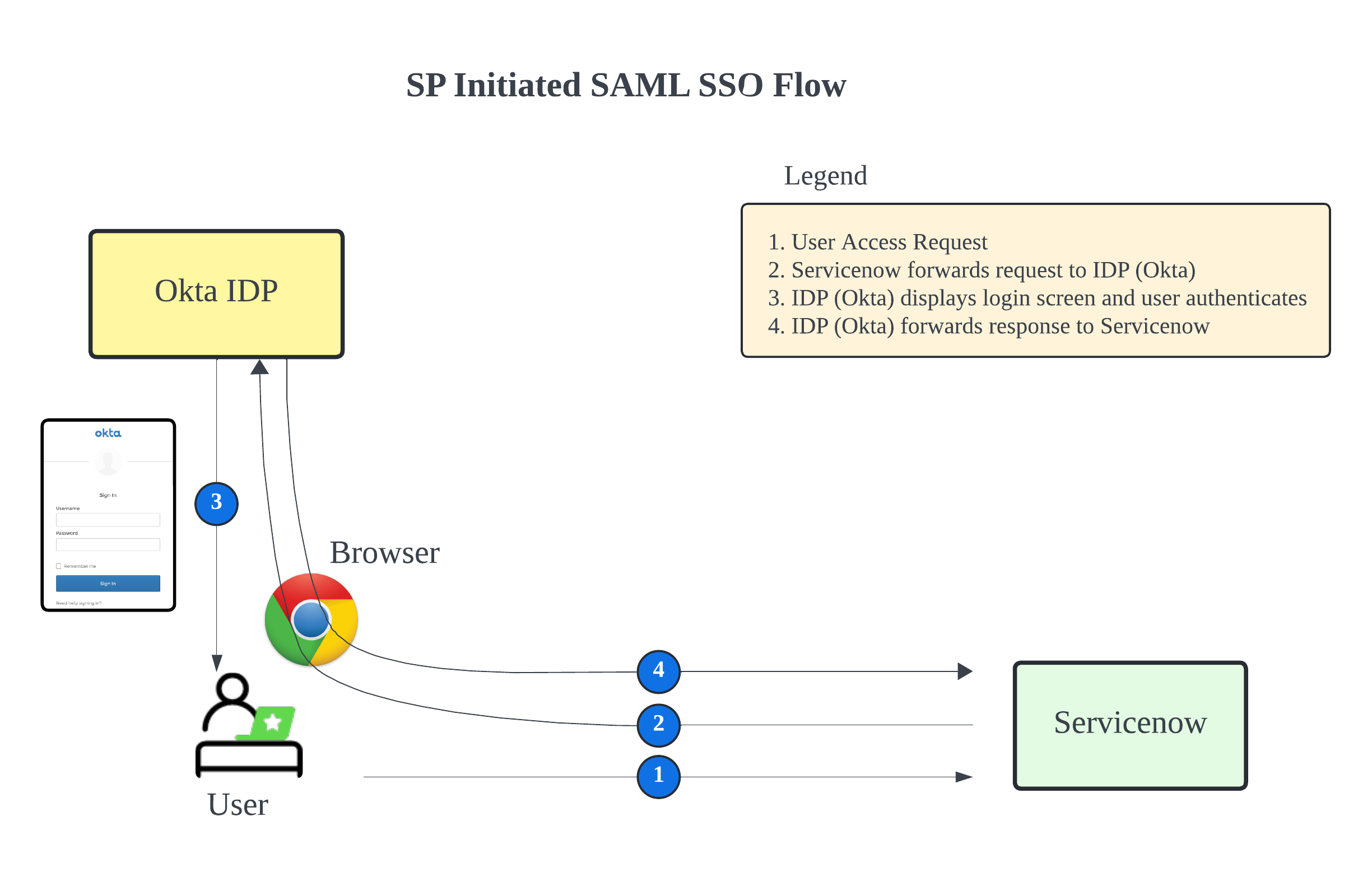
The diagram shows the SP-Initiated SAML SSO (Single Sign-On) process. It explains how a user, ServiceNow (as the Service Provider), and an Identity Provider (IDP, like Okta) interact. Here’s a simple breakdown of each step:
1. User Access Request
The user tries to access the ServiceNow application. This action starts the SSO process.
2. ServiceNow Forwards Request to IDP (Okta)
Next, ServiceNow sends the user to the Identity Provider (IDP) using an HTTP Redirect or HTTP Post. Although these methods are not critical to know in detail, we will use HTTP Redirect in this article.
Using HTTP Redirect
ServiceNow Redirects to IDP: ServiceNow redirects the user to the IDP (Okta) using the user’s browser (User Agent).
302 Status Response: In this step, ServiceNow, acting as the Service Provider (SP), sends a 302 status response to the browser. This response tells the browser to redirect the request to the IDP (Okta) for user authentication.
Using HTTP POST
Alternatively, ServiceNow can use HTTP POST.
HTML Form Creation: ServiceNow creates an HTML form containing the SAML request data.
Form Submission: This form is sent to the user’s browser, which automatically submits it to the IDP (Okta) via an HTTP POST request.
3. IDP (Okta) Displays Login Screen and Authenticates User
Once the request reaches the IDP, the IDP shows a login screen to the user. The user enters their credentials (username and password). The IDP (Okta) checks the user’s credentials. If the credentials are correct, the IDP creates a SAML response with the user’s information.
4. IDP (Okta) Forwards Response to ServiceNow
Finally, the IDP sends the SAML response back to ServiceNow through the user’s browser. ServiceNow reads the SAML response, checks it, and grants the user access based on their roles and permissions in ServiceNow.
Now that we’ve explored the SAML flow, let’s move on to understanding and establishing trust between the Service Provider (SP) and the Identity Provider (IDP).
Understanding and Establishing Trust between SP and IDP
Now you need to sign SAML requests and SAML responses, and it’s better to encrypt the SAML response as well. For signed and encrypted messages to work between the IDP (Okta) and SP (ServiceNow), both parties need to know each other. They establish this by sharing information and certificates, creating trust.
Trust in SAML and SSO means a secure relationship between the Service Provider (ServiceNow) and the Identity Provider (Okta). You establish this trust by exchanging metadata, certificates, and keys, which ensures both parties can securely authenticate and authorize users.
In short, you establish trust by exchanging detailed information about the IDP and SP using XML data called metadata. You can do this automatically (if the SP and IDP have a URL for it) or manually.
Let’s take a look at how metadata from ServiceNow and Okta look and understand what is included inside it. You can use these templates to manually create metadata for your ServiceNow instance.
Metadata Templates with Explanations
Here are the metadata templates for ServiceNow and Okta, along with explanations of the important attributes and their values.
SP (Service Provider) Metadata Template (ServiceNow)
<EntityDescriptor xmlns="urn:oasis:names:tc:SAML:2.0:metadata" entityID="{SP Entity ID or Name}">
    <SPSSODescriptor AuthnRequestsSigned="true" WantAssertionsSigned="true" protocolSupportEnumeration="urn:oasis:names:tc:SAML:2.0:protocol">
        <KeyDescriptor use="signing">
            <ds:KeyInfo xmlns:ds="http://www.w3.org/2000/09/xmldsig#">
                <ds:X509Data>
                    <ds:X509Certificate>{Signing Certificate}</ds:X509Certificate>
                </ds:X509Data>
            </ds:KeyInfo>
        </KeyDescriptor>
        <KeyDescriptor use="encryption">
            <ds:KeyInfo xmlns:ds="http://www.w3.org/2000/09/xmldsig#">
                <ds:X509Data>
                    <ds:X509Certificate>{Encryption Certificate}</ds:X509Certificate>
                </ds:X509Data>
            </ds:KeyInfo>
        </KeyDescriptor>
        <SingleLogoutService Binding="urn:oasis:names:tc:SAML:2.0:bindings:HTTP-POST" Location="{SP Single Logout Service URL}"/>
        <NameIDFormat>urn:oasis:names:tc:SAML:1.1:nameid-format:emailAddress</NameIDFormat>
        <AssertionConsumerService isDefault="true" index="0" Binding="urn:oasis:names:tc:SAML:2.0:bindings:HTTP-POST" Location="{SP Assertion Consumer Service URL 1}"/>
        <AssertionConsumerService isDefault="false" index="1" Binding="urn:oasis:names:tc:SAML:2.0:bindings:HTTP-POST" Location="{SP Assertion Consumer Service URL 2}"/>
    </SPSSODescriptor>
</EntityDescriptor>
EntityDescriptor entityID: You set this as the unique identifier for your ServiceNow instance, like “https://yourinstance.service-now.com”. While the definition allows for any unique identifier to name and identify the service provider, in ServiceNow, it always needs to be the instance URL.
SPSSODescriptor AuthnRequestsSigned: When you set this to “true,” ServiceNow will sign authentication requests.
WantAssertionsSigned: When you set this to “true,” ServiceNow expects the SAML assertions it receives to be signed.
KeyDescriptor use=”signing”: This section includes the certificate you use to sign SAML messages in ServiceNow. Replace {Signing Certificate} with your actual certificate. You can find the signing certificate in the X.509 Certificates (sys_certificate) table in the form of keystores. The sys_id for the signing keystore record is specified in the sys_property glide.authenticate.sso.saml2.keystore
If you want to add your own keystore, you also need to change this property.
KeyDescriptor use=”encryption”: This section includes the certificate you use to decrypt SAML messages in ServiceNow. Replace {Encryption Certificate} with your actual certificate.
You can find the encryption certificate in the X.509 Certificates (sys_certificate) table in the form of keystores. The sys_id for the encryption keystore record is specified in the sys_property glide.authenticate.sso.saml2.encryption.keystore
AssertionConsumerService Location: You set this as the URL where the IDP will send the SAML response, like “https://yourinstance.service-now.com/navpage.do”. There can be multiple tags for AssertionConsumerService, each with an index. ServiceNow normally has two: “https://yourinstance.service-now.com/navpage.do” and “https://yourinstance.service-now.com/consumer.do”.
Identity Provider (IDP) Metadata Template (Okta)
<?xml version="1.0" encoding="UTF-8"?>
<md:EntityDescriptor entityID="{IDP Entity ID}"
    xmlns:md="urn:oasis:names:tc:SAML:2.0:metadata">
    <md:IDPSSODescriptor WantAuthnRequestsSigned="true" protocolSupportEnumeration="urn:oasis:names:tc:SAML:2.0:protocol">
        <md:KeyDescriptor use="signing">
            <ds:KeyInfo xmlns:ds="http://www.w3.org/2000/09/xmldsig#">
                <ds:X509Data>
                    <ds:X509Certificate>{Signing Certificate}</ds:X509Certificate>
                </ds:X509Data>
            </ds:KeyInfo>
        </md:KeyDescriptor>
        <md:KeyDescriptor use="encryption">
            <ds:KeyInfo xmlns:ds="http://www.w3.org/2000/09/xmldsig#">
                <ds:X509Data>
                    <ds:X509Certificate>{Encryption Certificate}</ds:X509Certificate>
                </ds:X509Data>
            </ds:KeyInfo>
        </md:KeyDescriptor>
        <md:SingleLogoutService Binding="urn:oasis:names:tc:SAML:2.0:bindings:HTTP-POST" Location="{SingleLogoutService POST URL}"/>
        <md:SingleLogoutService Binding="urn:oasis:names:tc:SAML:2.0:bindings:HTTP-Redirect" Location="{SingleLogoutService Redirect URL}"/>
        <md:NameIDFormat>urn:oasis:names:tc:SAML:1.1:nameid-format:emailAddress</md:NameIDFormat>
        <md:SingleSignOnService Binding="urn:oasis:names:tc:SAML:2.0:bindings:HTTP-POST" Location="{SingleSignOnService POST URL}"/>
        <md:SingleSignOnService Binding="urn:oasis:names:tc:SAML:2.0:bindings:HTTP-Redirect" Location="{SingleSignOnService Redirect URL}"/>
    </md:IDPSSODescriptor>
</md:EntityDescriptor>
EntityDescriptor entityID: You set this as the unique identifier for your Identity Provider (IDP). For Okta, this is typically your Okta instance URL or a unique identifier specific to your Okta configuration.
IDPSSODescriptor WantAuthnRequestsSigned: This specifies whether the IDP wants to sign authentication requests.
KeyDescriptor use=”signing”: Okta signs the SAML assertions with this certificate.
KeyDescriptor use=”encryption”: Okta encrypts the SAML assertions with this certificate.
SingleLogoutService Location: The IDP handles logout requests at this URL. ServiceNow needs to send the logout requests to this URL. For most IDPs, this URL is usually the same for both HTTP-POST and HTTP-Redirect requests.
NameIDFormat: This specifies how to format the name identifier. In this example, it uses the email address format “urn:oasis:names:tc:SAML:1.1:nameid-format”. This means the user’s email address will be used as their unique identifier.
SingleSignOnService Location: The IDP handles signon requests at this URL. ServiceNow needs to send the signon requests to this URL. For most IDPs, this URL is usually the same for both HTTP-POST and HTTP-Redirect requests.
Now that we understand the SAML flow and the trust established between the Service Provider (SP) and Identity Provider (IDP), let’s move on to a practical approach. In this section, we will manually create an SSO login URL, send it to the IDP, receive the response, and use various tools to debug and dissect the request and response.
Manual SSO Login and Debugging
This is the section where the actual fun starts. We’ll manually create an SSO login URL using the metadata from the configured ServiceNow Identity Provider record. We will look at specific details from both ServiceNow and Okta settings.
I’ll provide screenshots: one from ServiceNow showing the Identity Provider record and another from Okta displaying the settings. We will also review the metadata for both the Service Provider (SP) and the Identity Provider (IDP).
We will enable all security options, including signing and encryption, so that we can cover everything in a single topic. This will help you understand the SSO process and troubleshoot any issues.
Now, let’s move on to creating a SAML SSO login URL using the gathered information.
Creating a SAML SSO Login URL
Let’s walk through the steps to manually create a SAML SSO login URL using the metadata and settings from ServiceNow and Okta.
Step 1: Review the ServiceNow Identity Provider Settings
First, look at the ServiceNow Identity Provider settings. Below is a screenshot of the Identity Provider record in ServiceNow. 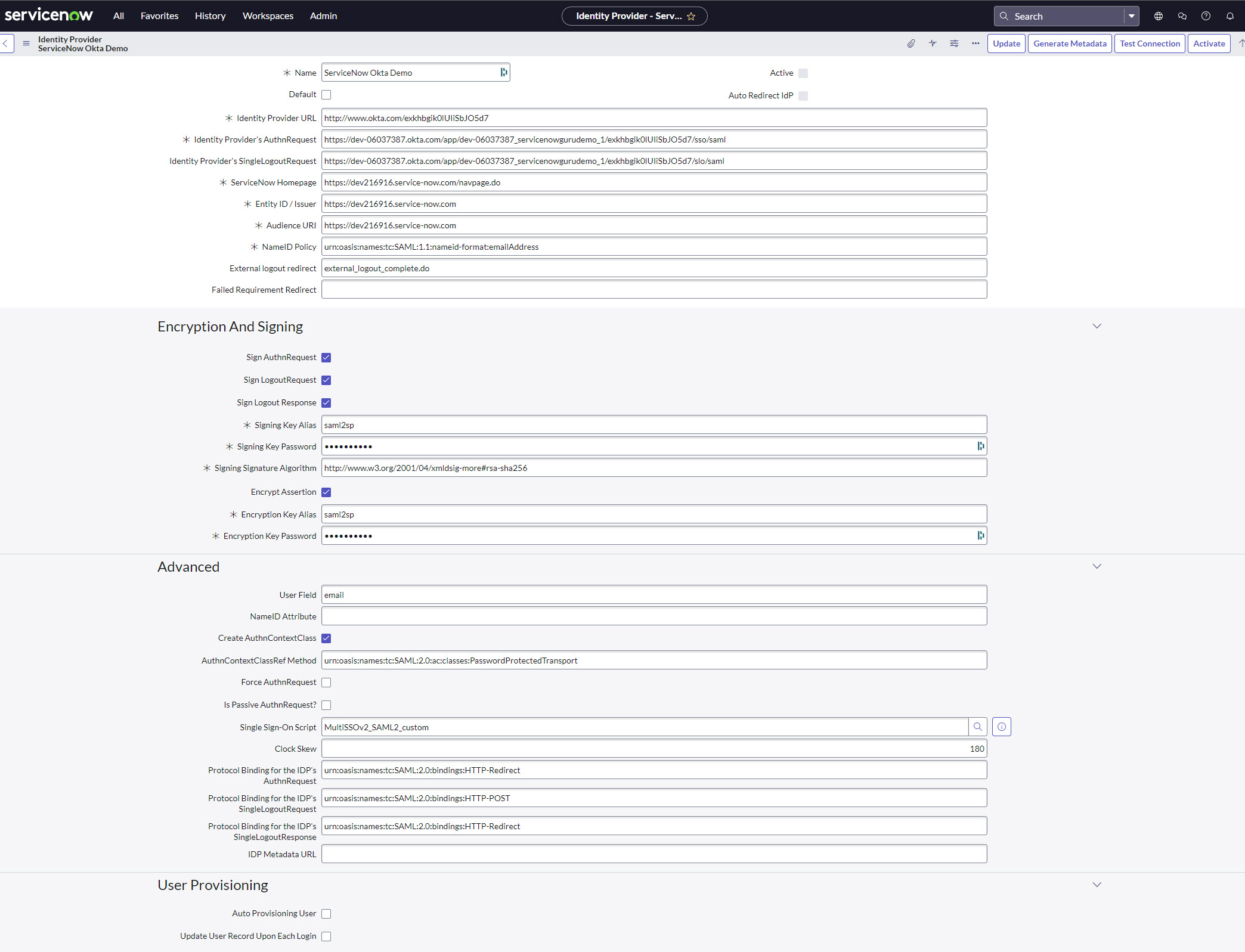 We need key information from this settings page, including the Entity ID (Field name in image is Identity Provider URL) , Single Sign-On Service URL (Field name in image is Identity Provider’s AuthnRequest), and the certificates for signing and encryption.
As explained belore, the signing and encryption certificates are added to the X.509 Certificates (sys_certificate) table and the sys_id’s of these records are updated in the properties glide.authenticate.sso.saml2.keystore and glide.authenticate.sso.saml2.encryption.keystore respectively.
Step 2: Review the Okta Application SAML Settings
Next, refer to the Okta Application SAML settings. Below is a screenshot of the SAML settings in Okta.
The values seen in this screeshot mostly reflect the setting from servicenow.
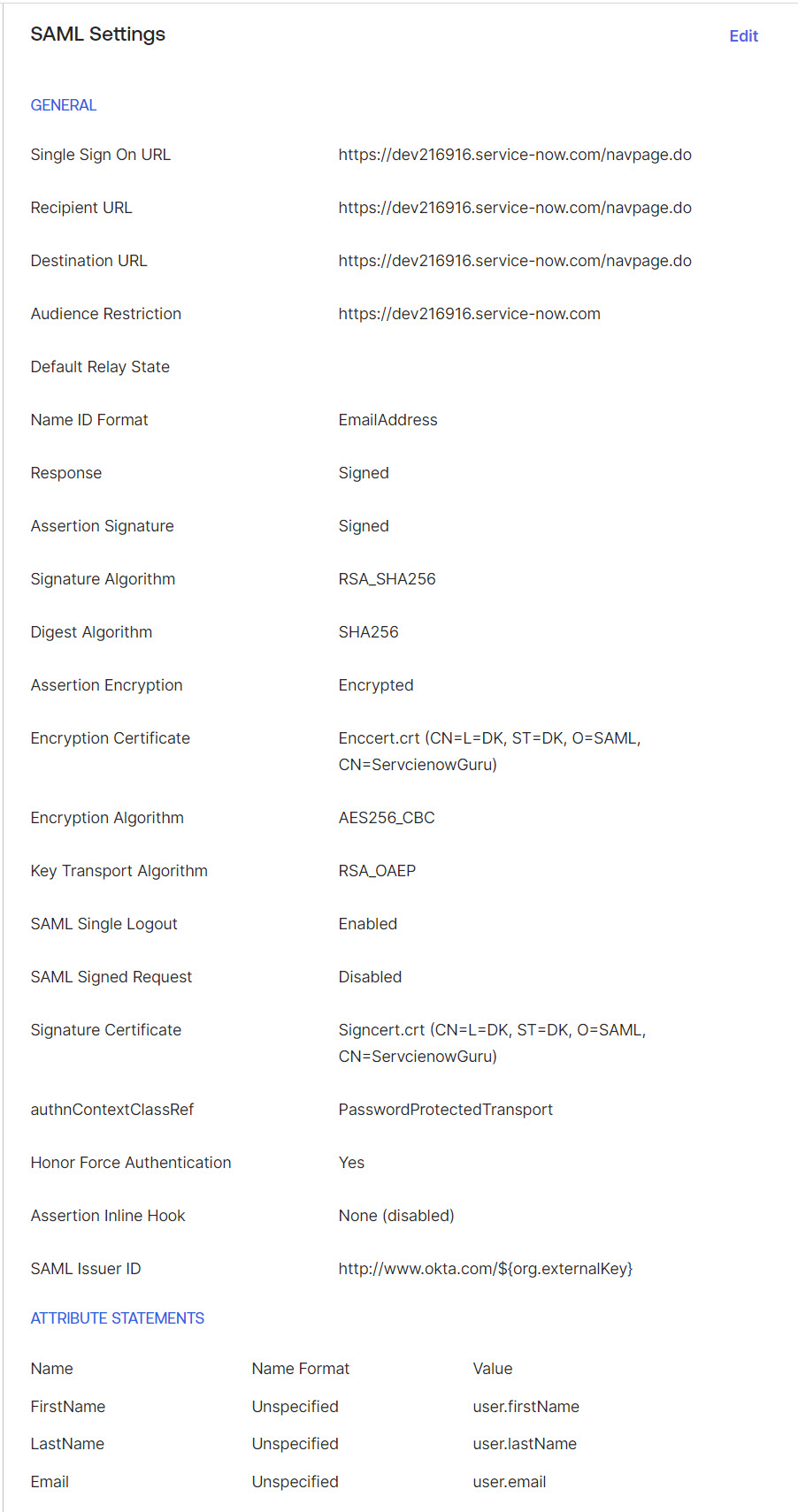
Okta Application SAML Settings
Step 3: Gather Metadata from ServiceNow
Here is the metadata XML from ServiceNow:
<EntityDescriptor xmlns="urn:oasis:names:tc:SAML:2.0:metadata" entityID="https://dev216916.service-now.com">
 	<SPSSODescriptor AuthnRequestsSigned="true" WantAssertionsSigned="true" protocolSupportEnumeration="urn:oasis:names:tc:SAML:2.0:protocol">
        <KeyDescriptor use="signing" >
            <ds:KeyInfo xmlns:ds="http://www.w3.org/2000/09/xmldsig#"><ds:X509Data><ds:X509Certificate>MIIFXDCCA0SgAwIBAgIKIhQRkXF2J4F0QzANBgkqhkiG9w0BAQsFADBCMRcwFQYDVQQDDA5TZXJ2
Y2llbm93R3VydTENMAsGA1UECgwEU0FNTDELMAkGA1UECAwCREsxCzAJBgNVBAcMAkRLMB4XDTI0
MDYwNTIyNTAxN1oXDTI1MDYwNTIyNTAxN1owQjEXMBUGA1UEAwwOU2VydmNpZW5vd0d1cnUxDTAL
BgNVBAoMBFNBTUwxCzAJBgNVBAgMAkRLMQswCQYDVQQHDAJESzCCAiIwDQYJKoZIhvcNAQEBBQAD
ggIPADCCAgoCggIBAJa01a4nGSiCLP1Lz3ApEAbsYfsLtNi8Ngh2r9r1FnV+ytyPSLJiXXkZvIqO
ICGFkr7HKVeB63FnCSu0Z7VBGB4Eoq9HDcgL9wdlLE4duD+O4gmAjxsJrBQDDTpPLv/ZQyRKM+ca
48Wb/RyantXONe3zbQMd4RlENBrvIYS82oK69oiXqJJl436JO6x9868P4Fy1Ih6wUXMaxqp2Kb+R
NXEegjeBPyA8DQCGKfGy1wRYG1BLzldHFo1Q0+jj1GADIX8NcwIxRrwvU4wpfSm0YH94s3lITjC1
Nnj0xt5hn+l7Yqn9kRzLe0LE18PojKqYq19Qw1pznVLZqZyb3ctNK5/wAiz/PTT+W0bFDOs4G6RZ
mlTDeiYkW2jD9q/3eNTmC/7KW640qBLqFNvHJjTf9Vba/zprUA2+LftH6LDVLMg0g+8RnV4xGbyd
lq0A3HlKIRz0gAjUZERRupMHeOzjE4iRy3ZPGY+1dS1r07IowVgo5BjFCyGG74zL81Du1VkpswYn
JjSy3Xjft9iyb3S7mxA+8YUeRUXEutZOv7PXDJE9J/3y+GVgljH3n4W+aFmRv1G3KQ3CcXM9pG/B
moF3a8K7JDGC1BDCiuc2bwVTXJJ07XHQkWByXHCheGX7OhHfQ+fkYBFlf4E3I7gUi94EiNfykeim
NLvOeJHJSATElylHAgMBAAGjVDBSMB0GA1UdDgQWBBQ2OfnLQ5vF64MfPkdNu+7ElPOIuzALBgNV
HQ8EBAMCAYYwDAYDVR0TBAUwAwEB/zAWBgNVHSUBAf8EDDAKBggrBgEFBQcDCDANBgkqhkiG9w0B
AQsFAAOCAgEAF1OcW5Sy9xIcrNPuv589d+mOIxl3wSPCZHAMzxnTWn1EanElQzciGvMWdX6m8zzI
TgNOdXJvJ4vU9mvKJQPnWhMLYrsN3mK1l8XS8/n2MRM6IXc3ve/U8y/Impy/8oow2cdmkkT42n3P
8c1uwkzoSCAYirljY9Cti/JdxVvLWuIbKEfctEEzvSGgX7ouJPoPftWObMSVtkwSHOm256Tpcd9H
m2YrxCXhxq5zgy1bMSoOc9aH3n/a1qoKRmvrD6xXzfGko1bMYmTYZwJeeVwELAxIrmE7/dD1A4Ba
EDC4OzIeLwvyIEgqHDqpX2Rng/etgfj0W5bVNAkua+VdEjUys7EGJot2+QL1wRgFDHHpRBjuJJR5
zc3d9IFJVfd6qoaWEEi6r3QWvldeaz+xzHahbXfRRWVYyr8xJHCkMfZujKxQPy6ui61M8F1MzrVV
dVM/HPGwG8QzGqXr8cOcGKqg5dJwVh6A96wW3thFl7ROwbJlPCJAi7UvAYQBAlakRGqZ3GQOJ1Ya
RRjfSue3mSWOWdN2pCHAjFCAswafCZdCIbjjdQxzrePyXSnsJ8GtgKM1AxTsSqa1mstgDxG42Dtl
TubyaAvfW5jItdD1mou5Kq2U8AV1VhJ+sbHug0NyP6PC6YeBx1stjM5N0rJ2cKGH51SuZbqOsTbj
qvZrqJaSuGg=</ds:X509Certificate></ds:X509Data></ds:KeyInfo>
        </KeyDescriptor>
        <KeyDescriptor use="encryption" >
            <ds:KeyInfo xmlns:ds="http://www.w3.org/2000/09/xmldsig#"><ds:X509Data><ds:X509Certificate>MIIFXDCCA0SgAwIBAgIKIhQRkXF2KAA3mTANBgkqhkiG9w0BAQsFADBCMRcwFQYDVQQDDA5TZXJ2
Y2llbm93R3VydTENMAsGA1UECgwEU0FNTDELMAkGA1UECAwCREsxCzAJBgNVBAcMAkRLMB4XDTI0
MDYwNTIyNTMyM1oXDTI1MDYwNTIyNTMyM1owQjEXMBUGA1UEAwwOU2VydmNpZW5vd0d1cnUxDTAL
BgNVBAoMBFNBTUwxCzAJBgNVBAgMAkRLMQswCQYDVQQHDAJESzCCAiIwDQYJKoZIhvcNAQEBBQAD
ggIPADCCAgoCggIBAMYBnr1xo3V/fGAamjBH1l1iXvCrDnUaHXcjCCq7MkDJXb8U19BxWfO6XEDo
j2N/hTF70uWb6LhOZe+zqkqqwUyXXCxuZSo8XnpXDoTUAf3BvW0xhBZtaRbkm8aoJsJTSDBuYr92
FZczWhNR4/J2jnYD4J4uNvpmh3iBO80ca5jAkAIWMnN+Fpr4or+u1oAZDbiJqNHjxCKfAq9nMcKN
8ECRA70+BdpLmX5KIefR80BrdozHlOHfBvlyaTWP1+YkYvdo/mY3ahUnZgKS6I7kbVYn0BhxgyBi
G2gx4Yl9+R4jiP69etJqym7r1cSd65YQURMZlvpq1MUisjjfjIdHk+3W3qaY4y2rJUGwPf4xzyex
kOefR7l2YO6yZxiw5DJ0ArmPSAH3OSAUHHrwB+c9SoId7DSpKOOf+mt9/kcFi76ALlBc58D4D7La
0DZ7NssMgcgutl/Q5ETxM6w3AGC/C05zmFHKxEOUsHzu0M0DzElWhvAc4wg1uaZjVgfGC/pl5zAE
9Nkm0EAQLb2CGC3FMjxOE+My4weyiVF+sUqwIvgdyzUg4l8fwr6tTp5fuYZljTj08boT7QqAxruS
BBZ7BCGzZY8Px+W4MZXj/powp9y7As8oFpPZY4vcMmhigRTi/ocXrQeBm7KaHwMnsXXYotg9KE3u
UGbz9/LFGiKsFuLbAgMBAAGjVDBSMB0GA1UdDgQWBBTYdap3IO58YdL5khQHJ9qyGL3xxDALBgNV
HQ8EBAMCAYYwDAYDVR0TBAUwAwEB/zAWBgNVHSUBAf8EDDAKBggrBgEFBQcDCDANBgkqhkiG9w0B
AQsFAAOCAgEAr/ERTjCi09xd+jZgGlSPLeadq3WK9hLlIrRQHdcUJ79YSAQSkO97x580Owi+5Qji
k3RkQHLH4XdcKElz67ILzf5kbBhYA3bXy3kzaFqMSujzVg3Cg5oUSGXp8o6wQAIixcQbjOUPq3Uv
6PEMe94rLR7d3pJgSFTSpUTdu7Nu3hTZ5BVvgcEx/++mgsCZIEUe9h0zfOrNUUk/kzeNgc9jvL+n
18LttqHYormLU2pT7dUKBFbF/nZkxevBwPn7rD3KJFwq/gJaXPjhJpPtj2kRNqC4CLd7cXm2suv4
kn5qQlreOOXa3OO2fAPMHCeoSBX5dPWBK9RT1N9psNUhRuz8NfxKU3+5x1udPBxgM/gNlT/piyrq
jbxVqI1sP2eh3vG3ZXHXoeNbJWKnzcRa8ISYa4NHskeU9kPZ5QIhTNcaBlJka0CQ06uEaNa44e+N
xQFCWGssqaMJ2BKRl6gMhBUwLE4Ldw9Z5TgBXq5M58uC6lck/m5PlOl8HKykt8RqYed09MR8A5Uw
Ji+noV27el6EBMt0SlZsw+78mk+ieLI+UbnzxjqfLK/v/fc+mEV0FWbZjKehb5kwT947vyd/1GdK
divPOt3z4UrWNYtquzuaWW6FMyKFDk4CVvIe9pOV6t6mM9wMp6/GapNhvdXuWxrWQXjp7Wti0yBA
UUNvYcQM5e0=</ds:X509Certificate></ds:X509Data></ds:KeyInfo>
        </KeyDescriptor>
        <SingleLogoutService Binding="urn:oasis:names:tc:SAML:2.0:bindings:HTTP-POST" Location="https://dev216916.service-now.com/navpage.do"/>
        <NameIDFormat>urn:oasis:names:tc:SAML:1.1:nameid-format:emailAddress</NameIDFormat>
        <AssertionConsumerService isDefault="true" index="0" Binding="urn:oasis:names:tc:SAML:2.0:bindings:HTTP-POST" Location="https://dev216916.service-now.com/navpage.do" />
        <AssertionConsumerService isDefault="false" index="1" Binding="urn:oasis:names:tc:SAML:2.0:bindings:HTTP-POST" Location="https://dev216916.service-now.com/consumer.do" />
    </SPSSODescriptor>
</EntityDescriptor>
Step 4: Gather Metadata from Okta
Here is the metadata XML from Okta:
<?xml version="1.0" encoding="UTF-8"?>
<md:EntityDescriptor entityID="http://www.okta.com/exkhbgik0lUIiSbJO5d7"
    xmlns:md="urn:oasis:names:tc:SAML:2.0:metadata">
    <md:IDPSSODescriptor WantAuthnRequestsSigned="false" protocolSupportEnumeration="urn:oasis:names:tc:SAML:2.0:protocol">
        <md:KeyDescriptor use="signing">
            <ds:KeyInfo
                xmlns:ds="http://www.w3.org/2000/09/xmldsig#">
                <ds:X509Data>
                    <ds:X509Certificate>MIIDqDCCApCgAwIBAgIGAY+v5nqHMA0GCSqGSIb3DQEBCwUAMIGUMQswCQYDVQQGEwJVUzETMBEG
A1UECAwKQ2FsaWZvcm5pYTEWMBQGA1UEBwwNU2FuIEZyYW5jaXNjbzENMAsGA1UECgwET2t0YTEU
MBIGA1UECwwLU1NPUHJvdmlkZXIxFTATBgNVBAMMDGRldi0wNjAzNzM4NzEcMBoGCSqGSIb3DQEJ
ARYNaW5mb0Bva3RhLmNvbTAeFw0yNDA1MjUxMzE2NDhaFw0zNDA1MjUxMzE3NDhaMIGUMQswCQYD
VQQGEwJVUzETMBEGA1UECAwKQ2FsaWZvcm5pYTEWMBQGA1UEBwwNU2FuIEZyYW5jaXNjbzENMAsG
A1UECgwET2t0YTEUMBIGA1UECwwLU1NPUHJvdmlkZXIxFTATBgNVBAMMDGRldi0wNjAzNzM4NzEc
MBoGCSqGSIb3DQEJARYNaW5mb0Bva3RhLmNvbTCCASIwDQYJKoZIhvcNAQEBBQADggEPADCCAQoC
ggEBAJF10PKyrOkMEZx2re11K7djM9xTG9liOfBMbjee/bxtev+AOXsSg7tXJs6Td3UbX+U5F6lJ
LgoF1ukI9JMgBBrFXbV03PloIuVfsFcCem1Gd6vnEzQ6tN4RERi7JQQt71s/Geo6AhT7HtDvClsZ
EWX+aFH3stoSZPukzuqUXHL21PpqYZRkNn9w+ar0PqH6BVvtTaOzRfYXqljlFDiBhLmr+ljN2393
Fcpa11jJE1xOSddHpXr4hSXW5UvL2gebcyoyEwPBWFhoIoemH3Ai14gpG9Pd8A8X7Qx+YrEruq8n
uQCDoD1BCPbKFyzIriy9cfX1SGVJ1WS9ObpTHIKNErkCAwEAATANBgkqhkiG9w0BAQsFAAOCAQEA
QlT3S/oWWXan6f9COy9RQYN7QE5+WHtQAMf5ABankqb2vd9wrAro/79+ToxfahGpXEEWl7p9jSw0
6GugcUGbSNSd+SdjT+vyZ0qe2FkcjpCPeO7CjKvnPINIWyc8WaVX7Qb1XD5lPOzyhnivAsAj90Ll
7DbhTUpyiAkHAdE9epVXk2XowWVMfJN22t9xNhMPsV/19wQCga7ir3j7Ljvg/N2Vv/B+JNchbYeo
oqB5Wd1TUmAQqKR2CggMQlwlUXqrdTv0WEGjM4TaknV3iTkW/fVxp/lpYcRBaX+iDr+JfpXpOI4E
Xlrn/ZLnWyZnZz7YnSnWjpl8oKAMY2k1HQAx8Q==</ds:X509Certificate>
                </ds:X509Data>
            </ds:KeyInfo>
        </md:KeyDescriptor>
        <md:SingleLogoutService Binding="urn:oasis:names:tc:SAML:2.0:bindings:HTTP-POST" Location="https://dev-06037387.okta.com/app/dev-06037387_servicenowgurudemo_1/exkhbgik0lUIiSbJO5d7/slo/saml"/>
        <md:SingleLogoutService Binding="urn:oasis:names:tc:SAML:2.0:bindings:HTTP-Redirect" Location="https://dev-06037387.okta.com/app/dev-06037387_servicenowgurudemo_1/exkhbgik0lUIiSbJO5d7/slo/saml"/>
        <md:NameIDFormat>urn:oasis:names:tc:SAML:1.1:nameid-format:emailAddress</md:NameIDFormat>
        <md:SingleSignOnService Binding="urn:oasis:names:tc:SAML:2.0:bindings:HTTP-POST" Location="https://dev-06037387.okta.com/app/dev-06037387_servicenowgurudemo_1/exkhbgik0lUIiSbJO5d7/sso/saml"/>
        <md:SingleSignOnService Binding="urn:oasis:names:tc:SAML:2.0:bindings:HTTP-Redirect" Location="https://dev-06037387.okta.com/app/dev-06037387_servicenowgurudemo_1/exkhbgik0lUIiSbJO5d7/sso/saml"/>
    </md:IDPSSODescriptor>
</md:EntityDescriptor>
The important information that we need from here are the SingleSignOnService, SingleLogoutService, the Signing certificate and entityID
Important Note
As you can see, the public keys are listed in the metadata. When metadata is used, the Identity Provider (IDP) and the Service Provider (SP) exchange these keys, which are then used to decrypt the signed and encrypted requests. Ensuring you have these public keys correctly configured is crucial for the SAML setup to function securely and correctly.
Step 5: Prepare the SAML Request XML
This is the section where we prepare the SAML Request XML. We’ll use a template and replace placeholders with the correct values from the metadata we’ve gathered. The template for the SAML Request XML is as follows:
<saml2p:AuthnRequest
    xmlns:saml2p="urn:oasis:names:tc:SAML:2.0:protocol"
    AssertionConsumerServiceURL="{SP-ACS-URL}"
    Destination="{IDP-SSO-URL}"
    ID="{UNIQUE-GENERATED-ID}"
    IssueInstant="2021-10-14T18:41:20.295Z"
    ProtocolBinding="urn:oasis:names:tc:SAML:2.0:bindings:HTTP-POST"
    Version="2.0">
    <saml2:Issuer
        xmlns:saml2="urn:oasis:names:tc:SAML:2.0:assertion">{SP-ENTITY-ID}
    </saml2:Issuer>
</saml2p:AuthnRequest>
Replacing the Placeholders
- AssertionConsumerServiceURL: This URL is where the IDP will send the SAML response. I will get this from my ServiceNow metadata from Step 3. The value is
https://dev216916.service-now.com/navpage.do. - Destination: This is the Single Sign-On URL provided by the IDP, and I can get it from the Okta Metadata from Step 4. The value is
https://dev-06037387.okta.com/app/dev-06037387_servicenowgurudemo_1/exkhbgik0lUIiSbJO5d7/sso/saml. - ID: This is a unique identifier for the SAML request. You need to generate this using a ServiceNow script:
SNC.SSOUtils.generateRequestId()
I usually let ServiceNow generate the ID using the ‘Testing Connection’ UI action button from an IDP record and then copy the ID from the SAML logs. Since the ID needs to be added to the session, running a script or using other tools to generate the URL won’t save the ID in the session. This method allows ServiceNow to track the ID, which it references to check the validity of the SAML response.
- IssueInstant: The timestamp indicates when the SAML request is issued. Ensure it is in the correct format (ISO 8601). I will use my current time, i.e.,
2024-06-08T18:41:20.295Z. - Issuer: This is the entity ID of the Service Provider (SP), which is your ServiceNow instance URL or the entity ID you configured. I will use the entity ID from the ServiceNow metadata in Step 3. The value is
https://dev216916.service-now.com.
Example with Replaced Values
Here’s how the XML might look after replacing the placeholders with actual values:
<saml2p:AuthnRequest
    xmlns:saml2p="urn:oasis:names:tc:SAML:2.0:protocol"
    AssertionConsumerServiceURL="https://dev216916.service-now.com/navpage.do"
    Destination="https://dev-06037387.okta.com/app/dev-06037387_servicenowgurudemo_1/exkhbgik0lUIiSbJO5d7/sso/saml"
    ID="SNC90de684c667bfa95b48e5679daf4895b"
    IssueInstant="2024-06-08T18:41:20.295Z"
    ProtocolBinding="urn:oasis:names:tc:SAML:2.0:bindings:HTTP-POST"
    Version="2.0">
    <saml2:Issuer
        xmlns:saml2="urn:oasis:names:tc:SAML:2.0:assertion">https://dev216916.service-now.com
    </saml2:Issuer>
</saml2p:AuthnRequest>
Step 6: Create, Encode, and Sign the SAML Request XML
In this step, we will generate a similar XML to the one in the previous step using a script and then encode and sign the SAML Request XML. If you want to get a quick reference on concepts of signing and encoding, you can check out my article on cryptography.
I have created a script that handles the compression, encoding, and signing of the SAML request, generating the final SSO URL. This script ensures your SAML requests are correctly formatted and secured. Additionally, you can use samltool.com to create such URLs. This website is very handy when dealing with SAML.
Here’s the complete script:
var saml2 = new SAML2_update1();  // Initialize with the default constructor

/** @type {string} IDP SSO URL */
var IDP_SSO_URL = "https://dev-06037387.okta.com/app/dev-06037387_servicenowgurudemo_1/exkhbgik0lUIiSbJO5d7/sso/saml";
/** @type {string} Assertion Consumer Service URL */
var ASSERTION_CONSUMER_SERVICE_URL = "https://dev216916.service-now.com/navpage.do";
/** @type {string} Protocol Binding */
var PROTOCOL_BINDING = "urn:oasis:names:tc:SAML:2.0:bindings:HTTP-POST";
/** @type {string} Request ID */
var REQUEST_ID = saml2.generateRequestID();
/** @type {object} Issue Instant */
var ISSUE_INSTANT = new Packages.org.joda.time.DateTime();
/** @type {string} Issuer Value */
var ISSUER_VALUE = "https://dev216916.service-now.com";
/** @type {string} Signature Algorithm */
var SIG_ALG = "http://www.w3.org/2001/04/xmldsig-more#rsa-sha256";
/** @type {string} Relay State */
var RELAY_STATE = "https://dev216916.service-now.com/navpage.do";
/** @type {string} Certificate ID */
var CERTIFICATE_ID = "2d6e2ba297220210768df52ad053af34";
/** @type {string} Alias */
var ALIAS = "saml2sp";
/** @type {string} Alias Password */
var ALIAS_PASSWORD = "saml2sp";

/** @type {object} Mapping for SigAlg to Signing Algorithm */
var sigAlgMapping = {
    "http://www.w3.org/2001/04/xmldsig-more#rsa-sha256": "SHA256withRSA",
    "http://www.w3.org/2001/04/xmldsig-more#rsa-sha1": "SHA1withRSA",
    "http://www.w3.org/2000/09/xmldsig#rsa-md5": "MD5withRSA",
    "http://www.w3.org/2001/04/xmldsig-more#rsa-md2": "MD2withRSA",
    "http://www.w3.org/2001/04/xmldsig-more#rsa-sha224": "SHA224withRSA",
    "http://www.w3.org/2001/04/xmldsig-more#rsa-sha384": "SHA384withRSA",
    "http://www.w3.org/2001/04/xmldsig-more#rsa-sha512": "SHA512withRSA",
    "http://www.w3.org/2000/09/xmldsig#dsa-sha1": "SHA1withDSA",
    "http://www.w3.org/2001/04/xmldsig-more#dsa-sha256": "SHA256withDSA",
    "http://www.w3.org/2001/04/xmldsig-more#ecdsa-sha1": "SHA1withECDSA",
    "http://www.w3.org/2001/04/xmldsig-more#ecdsa-sha224": "SHA224withECDSA",
    "http://www.w3.org/2001/04/xmldsig-more#ecdsa-sha256": "SHA256withECDSA",
    "http://www.w3.org/2001/04/xmldsig-more#ecdsa-sha384": "SHA384withECDSA",
    "http://www.w3.org/2001/04/xmldsig-more#ecdsa-sha512": "SHA512withECDSA"
};

try {
    /**
     * Manually create the AuthnRequest object with hardcoded values
     */
    var AuthnRequestBuilder = Packages.org.opensaml.saml2.core.impl.AuthnRequestBuilder;
    var AuthnRequestMarshaller = Packages.org.opensaml.saml2.core.impl.AuthnRequestMarshaller;
    var SAMLVersion = Packages.org.opensaml.common.SAMLVersion;

    var builder = new AuthnRequestBuilder();
    var authnRequest = builder.buildObject();
    authnRequest.setID(REQUEST_ID);
    authnRequest.setVersion(SAMLVersion.VERSION_20);
    authnRequest.setIssueInstant(ISSUE_INSTANT);
    authnRequest.setAssertionConsumerServiceURL(ASSERTION_CONSUMER_SERVICE_URL);
    authnRequest.setProtocolBinding(PROTOCOL_BINDING);

    var issuerBuilder = new Packages.org.opensaml.saml2.core.impl.IssuerBuilder();
    var issuer = issuerBuilder.buildObject();
    issuer.setValue(ISSUER_VALUE);

    authnRequest.setIssuer(issuer);
    authnRequest.setDestination(IDP_SSO_URL);

    /**
     * Marshall the AuthnRequest object to an XML element
     */
    var marshaller = new AuthnRequestMarshaller();
    var xmlElement = marshaller.marshall(authnRequest);

    /**
     * Convert the XML element to a string
     */
    var samlRequestString = GlideXMLUtil.toFragmentString(xmlElement.getOwnerDocument());
    gs.info("SAML Request: " + samlRequestString);

    /**
     * Deflate, Base64 encode, and URL encode the SAML request string
     */
    var deflatedEncodedRequest = saml2.getEncodedSAMLRequest(xmlElement, true, true);

    /**
     * Print the deflated and encoded SAML request (for debugging)
     */
    gs.info("Deflated and Encoded SAML Request: " + deflatedEncodedRequest);

    /**
     * Construct the final SSO URL
     */
    var ssoUrl = constructSSOUrl(IDP_SSO_URL, deflatedEncodedRequest);
    gs.info("SSO URL: " + ssoUrl);
} catch (e) {
    if (e instanceof Packages.java.lang.Throwable) {
        gs.logError(GlideLog.getStackTrace(e));
    } else {
        gs.logError(e.name + ": " + e.message);
    }
}

/**
 * Constructs the SSO URL with the given parameters.
 * @param {string} idpSSOUrl - The IDP SSO URL
 * @param {string} encodedSamlRequest - The encoded SAML request
 * @returns {string} - The constructed SSO URL
 */
function constructSSOUrl(idpSSOUrl, encodedSamlRequest) {
    /** Map SigAlg to Signing Algorithm */
    var signingAlgorithm = sigAlgMapping[SIG_ALG];

    /** Encode components */
    var encodedSigAlg = encodeURIComponent(SIG_ALG);
    var signature = generateSignature(encodedSamlRequest, signingAlgorithm);
    var encodedSignature = encodeURIComponent(signature);
    var encodedRelayState = encodeURIComponent(RELAY_STATE);

    /** Log each component of the URL */
    gs.info("Encoded SAML Request: " + encodedSamlRequest);
    gs.info("Signature Algorithm: " + SIG_ALG);
    gs.info("URI Encoded Signature Algorithm: " + encodedSigAlg);
    gs.info("Signature: " + signature);
    gs.info("URI Encoded Signature: " + encodedSignature);
    gs.info("Relay State: " + RELAY_STATE);
    gs.info("URI Encoded Relay State: " + encodedRelayState);

    /** Construct the SSO URL */
    var ssoUrl = idpSSOUrl + "?SAMLRequest=" + encodedSamlRequest +
                 "&SigAlg=" + encodedSigAlg +
                 "&Signature=" + encodedSignature +
                 "&RelayState=" + encodedRelayState;

    return ssoUrl;
}

/**
 * Generates a signature for the given SAML request.
 * @param {string} encodedSamlRequest - The encoded SAML request
 * @param {string} signingAlgorithm - The signing algorithm
 * @returns {string} - The generated signature
 */
function generateSignature(encodedSamlRequest, signingAlgorithm) {
    var gce = new GlideCertificateEncryption();
    return gce.sign(CERTIFICATE_ID, ALIAS, ALIAS_PASSWORD, signingAlgorithm, encodedSamlRequest);
}
Step 7: Manually Create the SSO Login URL
Using the information from the metadata, we will manually construct the SSO login URL. Here is the template for the URL:
<IDP-SSO-URL>?SAMLRequest=<SAML-REQUEST-URL-ENCODED>&SigAlg=<SIG-ALG>&Signature=<URL-ENCODED-SIGN>&RelayState=<URL-ENCODED-RELAY>
Replace the placeholders with the actual values extracted from the metadata and settings:
- IDP-SLO-URL: The SingleSignOnService URL from the Okta metadata which we get from Step 4
i.e., https://dev-06037387.okta.com/app/dev-06037387_servicenowgurudemo_1/exkhbgik0lUIiSbJO5d7/slo/saml - SAML-REQUEST-URL-ENCODED: The Base64-encoded and URL-encoded SAML request. We need to deflate (compress) the SAML request as there are limitiation on how long an URL can be. This is also a reason why we should use HTTP Post instead of HTTP Redirect SAML Profiles.
- SIG-ALG: The signing algorithm used (e.g., http://www.w3.org/2001/04/xmldsig-more#rsa-sha256).
- URL-ENCODED-SIGN: The URL-encoded signature. Refer the article on cryptography
- RelayState: Optional parameter to maintain state information.
We will use the script from the previous step to generate various components of the URL alomg with the final SSO Login URL
*** Script: SAML Request: <saml2p:AuthnRequest xmlns:saml2p="urn:oasis:names:tc:SAML:2.0:protocol" AssertionConsumerServiceURL="https://dev216916.service-now.com/navpage.do" Destination="https://dev-06037387.okta.com/app/dev-06037387_servicenowgurudemo_1/exkhbgik0lUIiSbJO5d7/sso/saml" ID="SNCc7a9ecb90a39a5757bba3efd2ab10da7" IssueInstant="2024-07-04T10:12:41.108Z" ProtocolBinding="urn:oasis:names:tc:SAML:2.0:bindings:HTTP-POST" Version="2.0"><saml2:Issuer xmlns:saml2="urn:oasis:names:tc:SAML:2.0:assertion">https://dev216916.service-now.com</saml2:Issuer></saml2p:AuthnRequest>
*** Script: SAML Request xml: <saml2p:AuthnRequest xmlns:saml2p="urn:oasis:names:tc:SAML:2.0:protocol" AssertionConsumerServiceURL="https://dev216916.service-now.com/navpage.do" Destination="https://dev-06037387.okta.com/app/dev-06037387_servicenowgurudemo_1/exkhbgik0lUIiSbJO5d7/sso/saml" ID="SNCc7a9ecb90a39a5757bba3efd2ab10da7" IssueInstant="2024-07-04T10:12:41.108Z" ProtocolBinding="urn:oasis:names:tc:SAML:2.0:bindings:HTTP-POST" Version="2.0"><saml2:Issuer xmlns:saml2="urn:oasis:names:tc:SAML:2.0:assertion">https://dev216916.service-now.com</saml2:Issuer></saml2p:AuthnRequest>
*** Script: Deflated and Encoded SAML Request: hVLBcoIwEP0VJncgATWSEWasHmrHVkewh16cAClmhIRmg%2B3nV9HO6MUed97bt7vv7QR4Uwctm3Z2rzbiqxNgnZ%2BmVsAuSIw6o5jmIIEp3ghgtmDp9HXJAg%2Bz1mirC10jZwogjJVazbSCrhEmFeYoC7HdLGO0t7YF5vulOAZkFJGRBxfUVfrbK3TjK35seSW8UiNnftpBKn4Wu2t18QiHNBxTTx8s79t4294hu6vuSbbqTFeKRu%2BIL34O%2B7ySB1xvFzLNX1bDkvoA2j%2BfiJzFPEbp26ygPBJFHmEeRnxIhzTPeSg%2By4DnBJecnogAnVgosFzZGAU4GLiYuniQEcxIwAbEI3j8gZz11ZUnqUqpqscW5hcSsOcsW7vrVZoh510Y6K8%2FEVAy6ZNg%2FXRzG85jYf6XCEr%2B9X%2Fi385IruX9WyS%2F
Found keyId : fdaef99e97a20210768df52ad053afbe in store : com.glide.kmf.KMFDBModuleKeyStore@22117d25
Found wrapped key in repo. Attempting to unwrap.
Successfully unwrapped key: fdaef99e97a20210768df52ad053afbe
*** Script: Encoded SAML Request: hVLBcoIwEP0VJncgATWSEWasHmrHVkewh16cAClmhIRmg%2B3nV9HO6MUed97bt7vv7QR4Uwctm3Z2rzbiqxNgnZ%2BmVsAuSIw6o5jmIIEp3ghgtmDp9HXJAg%2Bz1mirC10jZwogjJVazbSCrhEmFeYoC7HdLGO0t7YF5vulOAZkFJGRBxfUVfrbK3TjK35seSW8UiNnftpBKn4Wu2t18QiHNBxTTx8s79t4294hu6vuSbbqTFeKRu%2BIL34O%2B7ySB1xvFzLNX1bDkvoA2j%2BfiJzFPEbp26ygPBJFHmEeRnxIhzTPeSg%2By4DnBJecnogAnVgosFzZGAU4GLiYuniQEcxIwAbEI3j8gZz11ZUnqUqpqscW5hcSsOcsW7vrVZoh510Y6K8%2FEVAy6ZNg%2FXRzG85jYf6XCEr%2B9X%2Fi385IruX9WyS%2F
*** Script: Signature Algorithm: http://www.w3.org/2001/04/xmldsig-more#rsa-sha256
*** Script: URI Encoded Signature Algorithm: http%3A%2F%2Fwww.w3.org%2F2001%2F04%2Fxmldsig-more%23rsa-sha256
*** Script: Signature: GokmsDs/qv7RvWy/uJbQ6GhZBnnnpKevpqgkjk/fdgW+Q1dND9+F9A0yUb1sRBHXlLgrkIqQiC5LAy0nuqcxllH1PJ/1UMVJd6lOg6skH8WCXSZbjTpbixN+IpgSszVUAypZ+j8DuhKxGs0CLfIHgDafPbAz5O7OwI1w1L/Z4BQfTTV+ayBwvWOHpc1QGJDcuqhV3AecX/f8MHh5RGQ9rgCyfOk5tmDSXOgl1pEh3/QDIDaNKVNPPmVj8qIEKOtn8OH0T3KMTqPOivYWnyn2TxcfdZB1z+MYQUvMQPqbxRrFyJxo7TX6FNAqam680UgmkKvdbc6bMTtaz8wlAqiXWIvWq8P5MgPiyTcGTSe33591NT6HCNcm9FxrpWD0NNQFC/n2aT0gM8yilp77IwNtE6in8X5IxHq8FHXO6XD/aZk8b/qd4ce/GKe4mZ6TCkCYlWiglWV2v1BlvaXwdM8kAbAimazC1oeAmRiDJ6GJR553pkEqDjGL5z9u78tBQoiaTzQMs92DK5Z+9uPO0oxkvB/NAFP7CFExXz2JKlO+8wNrdoecDX/4duZIAGCKihQwkcqwjE7VXzxM8x8rH1XbLI8telN/lMkMiza2T3SJSTGpp11ojfAKcDXdSdawbLnnyYhzEK6r2g9sI0zIdp+oTQ5VJm5oQAJ642SQseHYjDY=
*** Script: URI Encoded Signature: GokmsDs%2Fqv7RvWy%2FuJbQ6GhZBnnnpKevpqgkjk%2FfdgW%2BQ1dND9%2BF9A0yUb1sRBHXlLgrkIqQiC5LAy0nuqcxllH1PJ%2F1UMVJd6lOg6skH8WCXSZbjTpbixN%2BIpgSszVUAypZ%2Bj8DuhKxGs0CLfIHgDafPbAz5O7OwI1w1L%2FZ4BQfTTV%2BayBwvWOHpc1QGJDcuqhV3AecX%2Ff8MHh5RGQ9rgCyfOk5tmDSXOgl1pEh3%2FQDIDaNKVNPPmVj8qIEKOtn8OH0T3KMTqPOivYWnyn2TxcfdZB1z%2BMYQUvMQPqbxRrFyJxo7TX6FNAqam680UgmkKvdbc6bMTtaz8wlAqiXWIvWq8P5MgPiyTcGTSe33591NT6HCNcm9FxrpWD0NNQFC%2Fn2aT0gM8yilp77IwNtE6in8X5IxHq8FHXO6XD%2FaZk8b%2Fqd4ce%2FGKe4mZ6TCkCYlWiglWV2v1BlvaXwdM8kAbAimazC1oeAmRiDJ6GJR553pkEqDjGL5z9u78tBQoiaTzQMs92DK5Z%2B9uPO0oxkvB%2FNAFP7CFExXz2JKlO%2B8wNrdoecDX%2F4duZIAGCKihQwkcqwjE7VXzxM8x8rH1XbLI8telN%2FlMkMiza2T3SJSTGpp11ojfAKcDXdSdawbLnnyYhzEK6r2g9sI0zIdp%2BoTQ5VJm5oQAJ642SQseHYjDY%3D
*** Script: Relay State: https://dev216916.service-now.com/navpage.do
*** Script: URI Encoded Relay State: https%3A%2F%2Fdev216916.service-now.com%2Fnavpage.do
*** Script: SSO URL: https://dev-06037387.okta.com/app/dev-06037387_servicenowgurudemo_1/exkhbgik0lUIiSbJO5d7/sso/saml?SAMLRequest=hVLBcoIwEP0VJncgATWSEWasHmrHVkewh16cAClmhIRmg%2B3nV9HO6MUed97bt7vv7QR4Uwctm3Z2rzbiqxNgnZ%2BmVsAuSIw6o5jmIIEp3ghgtmDp9HXJAg%2Bz1mirC10jZwogjJVazbSCrhEmFeYoC7HdLGO0t7YF5vulOAZkFJGRBxfUVfrbK3TjK35seSW8UiNnftpBKn4Wu2t18QiHNBxTTx8s79t4294hu6vuSbbqTFeKRu%2BIL34O%2B7ySB1xvFzLNX1bDkvoA2j%2BfiJzFPEbp26ygPBJFHmEeRnxIhzTPeSg%2By4DnBJecnogAnVgosFzZGAU4GLiYuniQEcxIwAbEI3j8gZz11ZUnqUqpqscW5hcSsOcsW7vrVZoh510Y6K8%2FEVAy6ZNg%2FXRzG85jYf6XCEr%2B9X%2Fi385IruX9WyS%2F&SigAlg=http%3A%2F%2Fwww.w3.org%2F2001%2F04%2Fxmldsig-more%23rsa-sha256&Signature=GokmsDs%2Fqv7RvWy%2FuJbQ6GhZBnnnpKevpqgkjk%2FfdgW%2BQ1dND9%2BF9A0yUb1sRBHXlLgrkIqQiC5LAy0nuqcxllH1PJ%2F1UMVJd6lOg6skH8WCXSZbjTpbixN%2BIpgSszVUAypZ%2Bj8DuhKxGs0CLfIHgDafPbAz5O7OwI1w1L%2FZ4BQfTTV%2BayBwvWOHpc1QGJDcuqhV3AecX%2Ff8MHh5RGQ9rgCyfOk5tmDSXOgl1pEh3%2FQDIDaNKVNPPmVj8qIEKOtn8OH0T3KMTqPOivYWnyn2TxcfdZB1z%2BMYQUvMQPqbxRrFyJxo7TX6FNAqam680UgmkKvdbc6bMTtaz8wlAqiXWIvWq8P5MgPiyTcGTSe33591NT6HCNcm9FxrpWD0NNQFC%2Fn2aT0gM8yilp77IwNtE6in8X5IxHq8FHXO6XD%2FaZk8b%2Fqd4ce%2FGKe4mZ6TCkCYlWiglWV2v1BlvaXwdM8kAbAimazC1oeAmRiDJ6GJR553pkEqDjGL5z9u78tBQoiaTzQMs92DK5Z%2B9uPO0oxkvB%2FNAFP7CFExXz2JKlO%2B8wNrdoecDX%2F4duZIAGCKihQwkcqwjE7VXzxM8x8rH1XbLI8telN%2FlMkMiza2T3SJSTGpp11ojfAKcDXdSdawbLnnyYhzEK6r2g9sI0zIdp%2BoTQ5VJm5oQAJ642SQseHYjDY%3D&RelayState=https%3A%2F%2Fdev216916.service-now.com%2Fnavpage.do
The final SSO Login URL will look like this:
https://dev-06037387.okta.com/app/dev-06037387_servicenowgurudemo_1/exkhbgik0lUIiSbJO5d7/sso/saml?SAMLRequest=hVLBcoIwEP0VJncgATWSEWasHmrHVkewh16cAClmhIRmg%2B3nV9HO6MUed97bt7vv7QR4Uwctm3Z2rzbiqxNgnZ%2BmVsAuSIw6o5jmIIEp3ghgtmDp9HXJAg%2Bz1mirC10jZwogjJVazbSCrhEmFeYoC7HdLGO0t7YF5vulOAZkFJGRBxfUVfrbK3TjK35seSW8UiNnftpBKn4Wu2t18QiHNBxTTx8s79t4294hu6vuSbbqTFeKRu%2BIL34O%2B7ySB1xvFzLNX1bDkvoA2j%2BfiJzFPEbp26ygPBJFHmEeRnxIhzTPeSg%2By4DnBJecnogAnVgosFzZGAU4GLiYuniQEcxIwAbEI3j8gZz11ZUnqUqpqscW5hcSsOcsW7vrVZoh510Y6K8%2FEVAy6ZNg%2FXRzG85jYf6XCEr%2B9X%2Fi385IruX9WyS%2F&SigAlg=http%3A%2F%2Fwww.w3.org%2F2001%2F04%2Fxmldsig-more%23rsa-sha256&Signature=GokmsDs%2Fqv7RvWy%2FuJbQ6GhZBnnnpKevpqgkjk%2FfdgW%2BQ1dND9%2BF9A0yUb1sRBHXlLgrkIqQiC5LAy0nuqcxllH1PJ%2F1UMVJd6lOg6skH8WCXSZbjTpbixN%2BIpgSszVUAypZ%2Bj8DuhKxGs0CLfIHgDafPbAz5O7OwI1w1L%2FZ4BQfTTV%2BayBwvWOHpc1QGJDcuqhV3AecX%2Ff8MHh5RGQ9rgCyfOk5tmDSXOgl1pEh3%2FQDIDaNKVNPPmVj8qIEKOtn8OH0T3KMTqPOivYWnyn2TxcfdZB1z%2BMYQUvMQPqbxRrFyJxo7TX6FNAqam680UgmkKvdbc6bMTtaz8wlAqiXWIvWq8P5MgPiyTcGTSe33591NT6HCNcm9FxrpWD0NNQFC%2Fn2aT0gM8yilp77IwNtE6in8X5IxHq8FHXO6XD%2FaZk8b%2Fqd4ce%2FGKe4mZ6TCkCYlWiglWV2v1BlvaXwdM8kAbAimazC1oeAmRiDJ6GJR553pkEqDjGL5z9u78tBQoiaTzQMs92DK5Z%2B9uPO0oxkvB%2FNAFP7CFExXz2JKlO%2B8wNrdoecDX%2F4duZIAGCKihQwkcqwjE7VXzxM8x8rH1XbLI8telN%2FlMkMiza2T3SJSTGpp11ojfAKcDXdSdawbLnnyYhzEK6r2g9sI0zIdp%2BoTQ5VJm5oQAJ642SQseHYjDY%3D&RelayState=https%3A%2F%2Fdev216916.service-now.com%2Fnavpage.do
Step 8: Sending the SSO Login URL to the IDP
To check if our URL works, we open a new browser session and run the SSO URL, It will open the SSO login page from the IDP and allow us to enter the login credentians.
In my example, I am using an imaginary user that I have created in Okta.
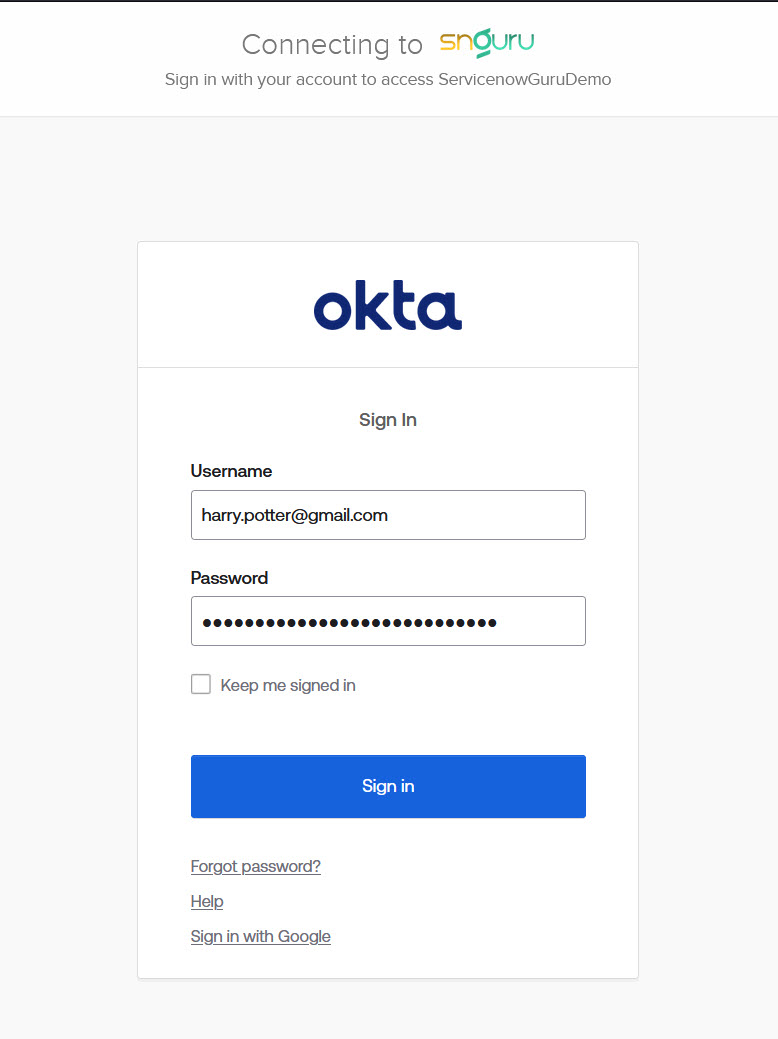
Step 9: Receiving and Analyzing the SAML Response
Incase there are errors, we need to be able to check the response from Okta. There are multiple ways to do this.
- Using the system logs
- Using some SAML Browser Extension
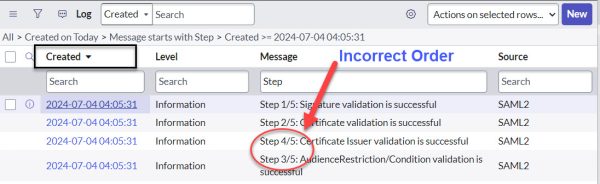
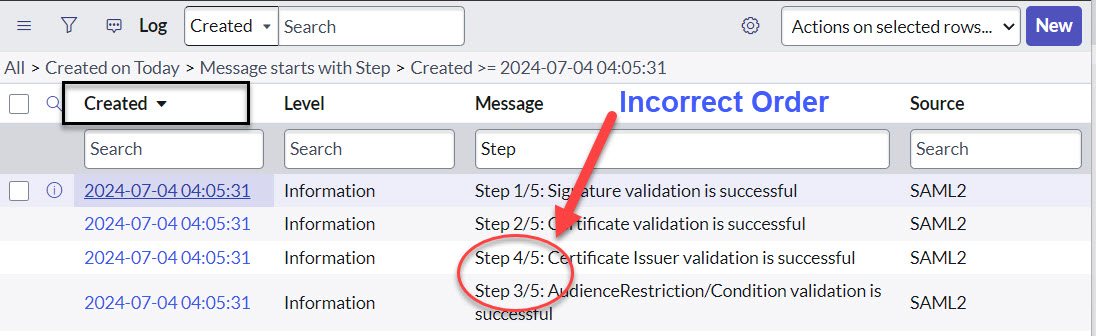
ServiceNow logs everything that happens during an SSO login process if you enable the sys_property called “glide.authenticate.multisso.debug.” However, since the system logs are shown in seconds, we do not see the exact order of events.
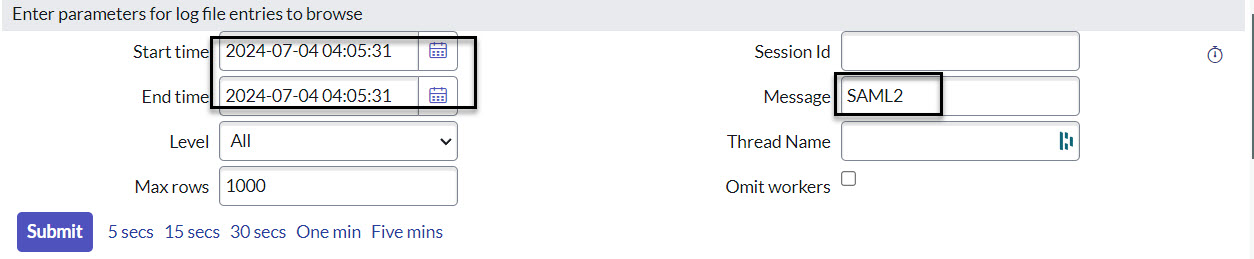
To dig deeper, we can find these precise logs, ordered chronologically to the millisecond, using the syslogs entries page. By using the exact second the SAML operation was performed and searching for “SAML2” as keywords, we can locate the proper logs.
In case of errors, it’s crucial to check the response from Okta. Here are a few methods to do this:
- Using the System Logs:
ServiceNow logs all activities during an SSO login process if you enable the glide.authenticate.multisso.debug property. However, since the system logs are shown in seconds, they might not display events in the exact order as they occur.
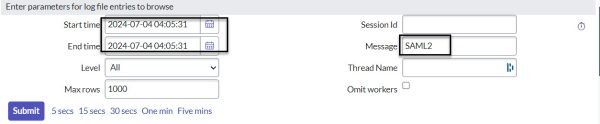
To dig deeper into the logs, use the syslogs entries page. Search for logs with the keyword “SAML2” and the exact second the SAML operation was performed. This method finds precise logs ordered chronologically to the millisecond, helping you identify the exact sequence of events and troubleshoot issues more effectively.
- Using SAML Browser Extensions:
These extensions can help capture and analyze SAML responses directly from the browser. I personally use a Chrome extension called SAML DevTools Extension. Once enabled, you can view the details of SAML requests and responses in the browser’s developer tools. Now lets use this extension to anaylse the SAML request and Response in the next section.
Using Tools to Debug SAML Requests and Responses
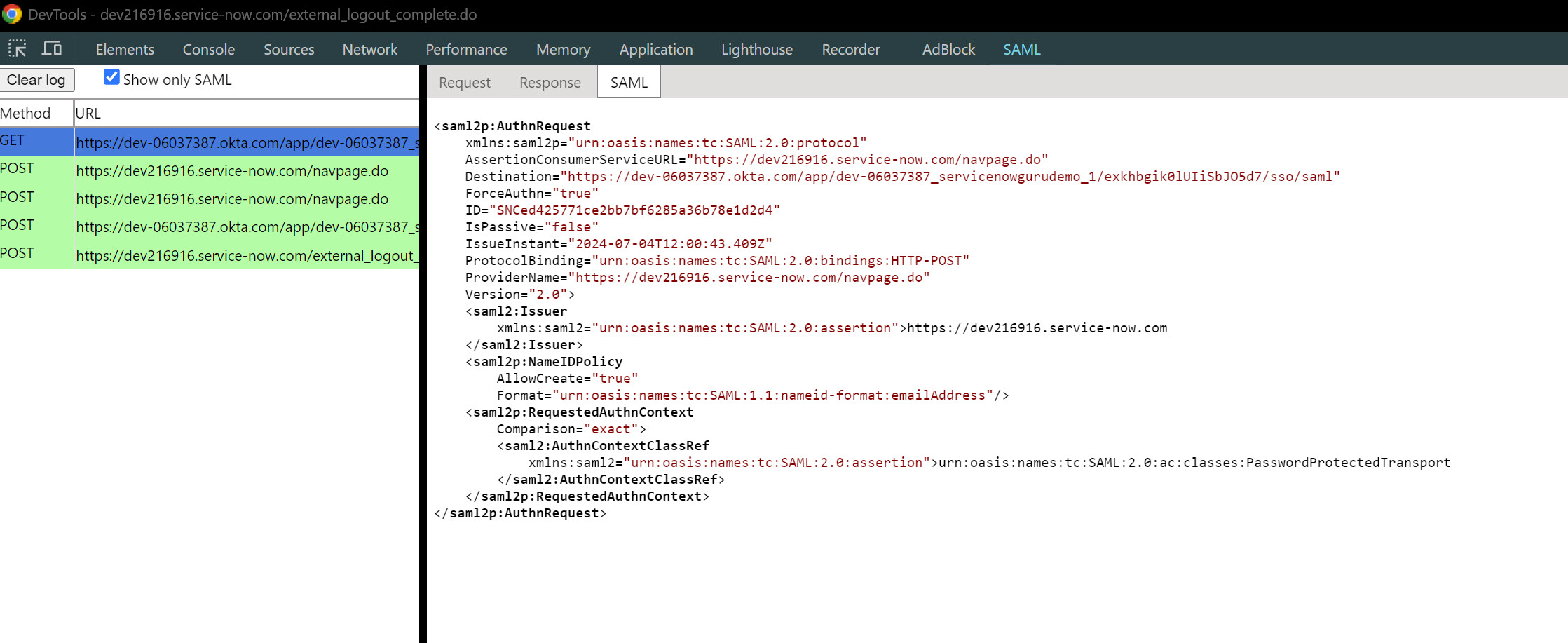
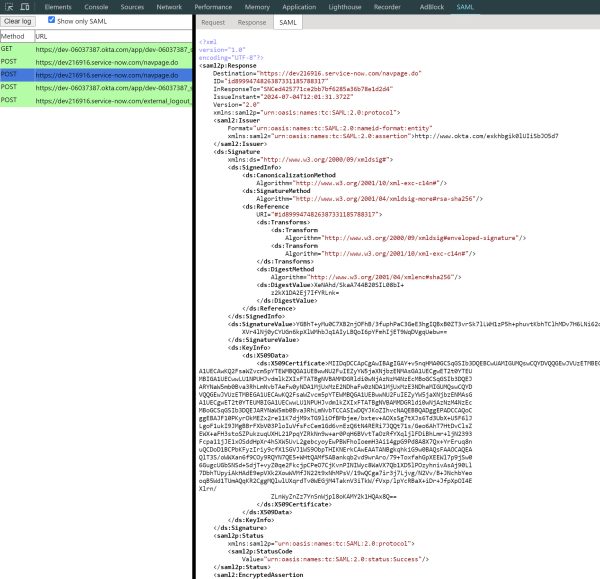
When debugging SAML issues, the SAML DevTools extension is an invaluable tool. This Chrome extension allows you to view the details of SAML requests and responses directly within the browser’s developer tools. Once enabled, you can inspect the SAML transactions, including both the requests sent to the Identity Provider (IdP) and the responses received.
We will use this tool alongside ServiceNow logs to analyze the SAML response. This combined approach ensures a thorough examination of the SAML transactions for effective troubleshooting. Here are screenshots of the SAML Request XML and the SAML Response XML, which we will discuss in the next section:
SAML Request
SAML Response
Understanding SAML Request and Response Structure
In this section, we delve into the details of the SAML Response XML and explain how ServiceNow checks various attributes upon receiving the response. We have already covered the details of the SAML Request, so we will not discuss it again.
SAML Request XML
The SAML DevTools extension captured this example of a SAML Request XML:
<saml2p:AuthnRequest
    xmlns:saml2p="urn:oasis:names:tc:SAML:2.0:protocol"
    AssertionConsumerServiceURL="https://dev216916.service-now.com/navpage.do"
    Destination="https://dev-06037387.okta.com/app/dev-06037387_servicenowgurudemo_1/exkhbgik0lUIiSbJO5d7/sso/saml"
    ForceAuthn="true"
    ID="SNCed425771ce2bb7bf6285a36b78e1d2d4"
    IsPassive="false"
    IssueInstant="2024-07-04T12:00:43.409Z"
    ProtocolBinding="urn:oasis:names:tc:SAML:2.0:bindings:HTTP-POST"
    ProviderName="https://dev216916.service-now.com/navpage.do"
    Version="2.0">
    <saml2:Issuer
        xmlns:saml2="urn:oasis:names:tc:SAML:2.0:assertion">https://dev216916.service-now.com
    </saml2:Issuer>
    <saml2p:NameIDPolicy
        AllowCreate="true"
        Format="urn:oasis:names:tc:SAML:1.1:nameid-format:emailAddress"/>
    <saml2p:RequestedAuthnContext
        Comparison="exact">
        <saml2:AuthnContextClassRef
            xmlns:saml2="urn:oasis:names:tc:SAML:2.0:assertion">urn:oasis:names:tc:SAML:2.0:ac:classes:PasswordProtectedTransport
        </saml2:AuthnContextClassRef>
    </saml2p:RequestedAuthnContext>
</saml2p:AuthnRequest>
XML Signatures
Before we look at the SAML response, it is important to understand XML Signatures for handling SAML responses like the one in our example. XML Signatures can sign the entire XML document or specific elements within it. In our ServiceNow example, we use an enveloped signature within the SAML response. Here’s a breakdown of the different types of XML signatures:
Enveloped Signature
An enveloped signature is when the signature is a descendant of the resource it signs. This means the signature is embedded within the XML data that it is intended to secure. By placing the signature within the signed data, it ensures that any alteration of the data will invalidate the signature, thus providing integrity and authenticity of the document.
In our example, the signature is within the <saml2p:Response> element. Here is how it looks:
<saml2p:Response ... ID="id8999474826387331185788317" ...>
    ...
    <ds:Signature>
        <ds:SignedInfo>
            ...
            <ds:Reference URI="#id8999474826387331185788317">
                <ds:Transforms>
                    <ds:Transform Algorithm="http://www.w3.org/2000/09/xmldsig#enveloped-signature"/>
                    <ds:Transform Algorithm="http://www.w3.org/2001/10/xml-exc-c14n#"/>
                </ds:Transforms>
                <ds:DigestMethod Algorithm="http://www.w3.org/2001/04/xmlenc#sha256"/>
                <ds:DigestValue>...</ds:DigestValue>
            </ds:Reference>
        </ds:SignedInfo>
        <ds:SignatureValue>...</ds:SignatureValue>
        <ds:KeyInfo>
            <ds:X509Data>
                <ds:X509Certificate>...</ds:X509Certificate>
            </ds:X509Data>
        </ds:KeyInfo>
    </ds:Signature>
    ...
</saml2p:Response>
Key Elements of the Enveloped Signature:
- Signature: This element contains the digital signature.
- SignedInfo: This element includes information on how the signature is generated, including the canonicalization and signature methods.
- Reference: This element specifies the data being signed. The
URIattribute refers to the ID of the<saml2p:Response>element. - Transforms: This element contains a list of transformations applied to the data before it is signed. The
enveloped-signaturetransform ensures the signature is calculated excluding the<Signature>element itself. - DigestMethod: This element specifies the algorithm used to create the digest of the referenced data.
- DigestValue: This element contains the actual digest value.
- SignatureValue: This element contains the actual signature value, which is the result of signing the
<SignedInfo>element. - KeyInfo: This element provides information about the key used to sign the document.
- X509Data: This element includes the X.509 certificate containing the public key corresponding to the private key used to sign the document.
- X509Certificate: This element contains the public key certificate.
Enveloping Signature
In enveloping signatures, the signature wraps the resource:
<ds:Signature>
    <ds:SignedInfo>
        ...
        <ds:Reference URI="#id8999474826387331185788317">
            ...
        </ds:Reference>
    </ds:SignedInfo>
    <samlp:Response ... ID="id8999474826387331185788317" ... >
        ...
    </samlp:Response>
</ds:Signature>
Detached Signature
Detached signatures are separate from the signed resource:
<samlp:Response ... ID="id8999474826387331185788317" ... >
    ...
</samlp:Response>
<ds:Signature>
    <ds:SignedInfo>
        ...
        <ds:Reference URI="#id8999474826387331185788317">
            ...
        </ds:Reference>
    </ds:SignedInfo>
</ds:Signature>
In our ServiceNow example, we see an enveloped signature, where the signature is within the SAML response it signs. This ensures the integrity and authenticity of the response.
With XML Signatures covered, let’s look at the SAML Response structure. In this section, we will explain how ServiceNow checks various attributes in the SAML Response for secure authentication.
SAML Response Structure
The IdP sends a SAML Response XML document to the Service Provider (SP) after authenticating the user. Here’s an example of a SAML Response:
<?xml
version="1.0"
encoding="UTF-8"?><saml2p:Response
    Destination="https://dev216916.service-now.com/navpage.do"
    ID="id8999474826387331185788317"
    InResponseTo="SNCed425771ce2bb7bf6285a36b78e1d2d4"
    IssueInstant="2024-07-04T12:01:31.372Z"
    Version="2.0" xmlns:saml2p="urn:oasis:names:tc:SAML:2.0:protocol"><saml2:Issuer
        Format="urn:oasis:names:tc:SAML:2.0:nameid-format:entity" xmlns:saml2="urn:oasis:names:tc:SAML:2.0:assertion">http://www.okta.com/exkhbgik0lUIiSbJO5d7
    </saml2:Issuer><ds:Signature xmlns:ds="http://www.w3.org/2000/09/xmldsig#"><ds:SignedInfo><ds:CanonicalizationMethod
                Algorithm="http://www.w3.org/2001/10/xml-exc-c14n#"/><ds:SignatureMethod
                Algorithm="http://www.w3.org/2001/04/xmldsig-more#rsa-sha256"/><ds:Reference
                URI="#id8999474826387331185788317"><ds:Transforms><ds:Transform
                        Algorithm="http://www.w3.org/2000/09/xmldsig#enveloped-signature"/><ds:Transform
                        Algorithm="http://www.w3.org/2001/10/xml-exc-c14n#"/></ds:Transforms><ds:DigestMethod
                    Algorithm="http://www.w3.org/2001/04/xmlenc#sha256"/><ds:DigestValue>XeNAhd/SkaA744B20SIL08bI+
                    z2kX1DA2Ej7IfYRLnk=
                </ds:DigestValue></ds:Reference></ds:SignedInfo><ds:SignatureValue>YGBhT+yMu0C7XB2njOFhB/3fuphPaC3GeE3hgIQBxB0ZT3vrSk7lLWH1zP5h+phuvtKbhTClhMDv7H6LNi62qn4AeS0d2PJQjfIXj3giBxyRI1X85GOl11nGhrwpOfqtEp7Mm3maolNuBaHa6UktdhxkjZkZXn6rolmA2SPcSC9bhTODKopdVGcArkZioI/MO+zx6SUdONafLuVwV9EcctXIdbTVLYqgayhcSwweF1vUHxQwJATH42XY8SjdUnHECj5OUXuyG+1cNTSbrFP4XNKHGPcqOd/
            XVr4lNj0yCYUGn6kpXlWMhbJq1AIyLBQoI6pYFmhIjET9WqDVgqUebw==
        </ds:SignatureValue><ds:KeyInfo><ds:X509Data><ds:X509Certificate>MIIDqDCCApCgAwIBAgIGAY+v5nqHMA0GCSqGSIb3DQEBCwUAMIGUMQswCQYDVQQGEwJVUzETMBEG
A1UECAwKQ2FsaWZvcm5pYTEWMBQGA1UEBwwNU2FuIEZyYW5jaXNjbzENMAsGA1UECgwET2t0YTEU
MBIGA1UECwwLU1NPUHJvdmlkZXIxFTATBgNVBAMMDGRldi0wNjAzNzM4NzEcMBoGCSqGSIb3DQEJ
ARYNaW5mb0Bva3RhLmNvbTAeFw0yNDA1MjUxMzE2NDhaFw0zNDA1MjUxMzE3NDhaMIGUMQswCQYD
VQQGEwJVUzETMBEGA1UECAwKQ2FsaWZvcm5pYTEWMBQGA1UEBwwNU2FuIEZyYW5jaXNjbzENMAsG
A1UECgwET2t0YTEUMBIGA1UECwwLU1NPUHJvdmlkZXIxFTATBgNVBAMMDGRldi0wNjAzNzM4NzEc
MBoGCSqGSIb3DQEJARYNaW5mb0Bva3RhLmNvbTCCASIwDQYJKoZIhvcNAQEBBQADggEPADCCAQoC
ggEBAJF10PKyrOkMEZx2re11K7djM9xTG9liOfBMbjee/bxtev+AOXsSg7tXJs6Td3UbX+U5F6lJ
LgoF1ukI9JMgBBrFXbV03PloIuVfsFcCem1Gd6vnEzQ6tN4RERi7JQQt71s/Geo6AhT7HtDvClsZ
EWX+aFH3stoSZPukzuqUXHL21PpqYZRkNn9w+ar0PqH6BVvtTaOzRfYXqljlFDiBhLmr+ljN2393
Fcpa11jJE1xOSddHpXr4hSXW5UvL2gebcyoyEwPBWFhoIoemH3Ai14gpG9Pd8A8X7Qx+YrEruq8n
uQCDoD1BCPbKFyzIriy9cfX1SGVJ1WS9ObpTHIKNErkCAwEAATANBgkqhkiG9w0BAQsFAAOCAQEA
QlT3S/oWWXan6f9COy9RQYN7QE5+WHtQAMf5ABankqb2vd9wrAro/79+ToxfahGpXEEWl7p9jSw0
6GugcUGbSNSd+SdjT+vyZ0qe2FkcjpCPeO7CjKvnPINIWyc8WaVX7Qb1XD5lPOzyhnivAsAj90Ll
7DbhTUpyiAkHAdE9epVXk2XowWVMfJN22t9xNhMPsV/19wQCga7ir3j7Ljvg/N2Vv/B+JNchbYeo
oqB5Wd1TUmAQqKR2CggMQlwlUXqrdTv0WEGjM4TaknV3iTkW/fVxp/lpYcRBaX+iDr+JfpXpOI4E
Xlrn/
                    ZLnWyZnZz7YnSnWjpl8oKAMY2k1HQAx8Q==
                </ds:X509Certificate></ds:X509Data></ds:KeyInfo></ds:Signature><saml2p:Status xmlns:saml2p="urn:oasis:names:tc:SAML:2.0:protocol"><saml2p:StatusCode
            Value="urn:oasis:names:tc:SAML:2.0:status:Success"/></saml2p:Status><saml2:EncryptedAssertion xmlns:saml2="urn:oasis:names:tc:SAML:2.0:assertion"><xenc:EncryptedData
            Id="_24bd7d84448b12589a8b12a697f44fa7"
            Type="http://www.w3.org/2001/04/xmlenc#Element" xmlns:xenc="http://www.w3.org/2001/04/xmlenc#"><xenc:EncryptionMethod
                Algorithm="http://www.w3.org/2001/04/xmlenc#aes256-cbc" xmlns:xenc="http://www.w3.org/2001/04/xmlenc#"/><ds:KeyInfo xmlns:ds="http://www.w3.org/2000/09/xmldsig#"><ds:RetrievalMethod
                    Type="http://www.w3.org/2001/04/xmlenc#EncryptedKey"
                    URI="#_62667646d33a28b6a656c1cb65b14d29"/></ds:KeyInfo><xenc:CipherData xmlns:xenc="http://www.w3.org/2001/04/xmlenc#"><xenc:CipherValue>XCmt0oFIimYx81lMHBtBqzeVrlAOijJn08TF0R6GKdHfZQK9sGmGzxg/aSkh4F0OvLCSAFjuOKelKXH9KHpKBOXe1hCzKbWgfw9LCr3FJMlP37i9Ysog6FVSP/XXlLfxsKH37G4PxNQijXFYBKl10/6h0fzMJAmrZ5becIuFiSeN7zEXOSKLXT4feHx0RqzLmeuBuK5uyBcZ1WADv7gVaf/TFxYRbPjMgGu8vG1gDUtHcqj6CF4qVBAkyOuzSNOeKkPCmQegvqhlD7UAwkGLwKzrWIyykmxUGbt+IYuj/6ZVzpS2b2DMu6V6h5fLACrAcAYPiF/He0BrciLVF1ruj4dsD+dCVc5cityFVW89dlcplZp/U0ECTUCMHZ5VW0hrc5aywEm31Zvh37rnsUhYdB2DdsUIPddKjFPGDslMxBJwF0WwUlpxeSY5HlEm7oSjZieqmG3veOk2b3dZZAy/wqf3vL9yR7ppWiCAEeagAfZzPYJHkPBYZHAcEWJb81S8snDnD99OloWwHANv3P8WNaTcRIUr6VVkc07G3c2myVl2K8XZwbEyinh0i2QRD5QS2xxAJLSmD7udnw4VntoGOGn4LKXlHujJfRl2JYSgsZdAPiB8BoeMyJJ4ivdT+sZ5HKmho+SxkVlmmrhZSCCCtnaOm1gkhnqvnANJKDIYGAQXmXFI8/gQff+3WbEWZe3tG7jrN8xRYqGDdmpSFfHvW6X3/P9+bZ7HWHkxmhkYwnHHma5PDFy+nBFALHbiR0oXC3PfyqWJApuK5/KJ/KmDpWcbuk+ETf3LDJn4Fo8ewukAOy43L+HQXkP0x899SZhCrCRvitpxZlWCMuiK0csDmvqtc8Eqrviej3equISlkuEphLpMQdB8U4W4beLyGtNFDqRbIGUtEp1dD7OQJgI3AjL4RPsjhZx8HiqUMtMLOB8+8lavDMjmu6c1EMSeIYZHuKcac94w5XLaPIwjQJ22v8e/5Mws8dF3xfGr8Fz/HdikxToZ+hhDY4kmcsyrs231jdnbKzaGEIFhfI374ZutOqXz3/66lnZmhYwgIPmkfkKKRpy4M/DtCQfwYZy3G+gVUAK/V+keSCCcO9DLuFrts8r3VVIpMrcLifATq1cbv57Qw0OCV3XekL4nS8gHxFD/gz98rHWIH6LuSqe/fzmRvKudbm7ZcpduVLusRyO50+Q1X6IG8VyQkkmlfi708Ll6DHuQqMmZyPxcFWo3oB8wfNy/FVO/kWxk6i9avGNFlK96/edS6Dsyd+HThadlzD+0PeM6Ex9fcTJiRG4+nwz4Lj8c3Bz8DrcFMyxCNyQZXRKMhZmruUHSUDXai499oC1TJf43mJF0At6+Pdyrs073bxJlyk0TJbMiRIy1gINe8Z091UkBksisT92HAMCAxsvcWGcBbO2G/pz2Om0raRPOVvUWz6BjSRZYj/zHrA5Oxa91qDMTdwC4qaGGeCoPo5uIu+skZUbN2Gkj1BXAuVfrl5nLDkhZPFcKak3Azwe/cobbJgybk24WbaIiCmt4cvPvFOYBn3yW0VENWUfxYY8PPXvgHIH1Jck7ZSgbHpXqetWS4uCdKyEekpQbbZGB2AXRo2gDUfT7pZkTVv6eynwefKDkRpr6kb0h3q7J2b1JWXaflmSLd1JoWRbjBc26p1d2wlAdOAtNsXiRtaV9B4KbH8m5aIi5BtjMFmam3ujGw/IA8cIYCtA0JThWEqZ4Q58bce0SxXfEFrjLgWN8IqLxFSmvRmNbpA7Q3+2K3x/UVdmDLyphSE+z1YUwIOzjm3jaQicFTX/yzAJN02clLFlUHlCE01QFqrUZRazEoOBXAPOSAw9nThBDr6I5XvMJCYiLPxXFZSMnbJ4THV0M5MshJLQlZ9zg7r8COhepiovf6le3I8EclSe5/wXzN4hRVHuUzzhsGWs3lKk4zHxo3ON1ukDAuBv8mycuEzILvWOcmfztTM7DK9t/x5YXvEMBX5dZj8/i5qPWmKe6vRYjU5ta+vI4RxicxV/+OZciNkJc0YUXGT0G2144lgCU7j+7xh1gc9Z+nxD+rqMsCX8hUApej7YNn9UXbL+dFLgt18azWVP1kxvhJ98c3cb0pw210l4GSkogaNuBZE9Yp7JjOUnOlXm+cx5tuAIZxIe5e65lf1DHM7WqiFnStY908iQHKJEA0HqdeqHTpbbu+MwKiUIR7RoF/FXGHVgjW1R2Rd8rLjk759MbA0m6XvNY7oMVXHzk5bYJo67wYVOZObe2/VxZoFJFECCvVJns2FOT0r/4002E3rjcLFH6+Z2fGKYQyhSFRstTjoYT+vz7X+nFnTrFfb5mP9GJ1Bjk9MdXANdU79+NlttfW4N+gc9U3/bapQA848fW1tDQmfHcHXQmUdv5w97p7HmeaBqBFW6g0jNqmELUNUSjfKRsKGSzDpUfKy/LmwXPCrtiEq3BGisFMOwIpJ4rpJvT3yDRROYXGefbPxkQ6g4h7MhAgwHeBIErsuoZT9Dr+yvgYtCexLT7f4LrLRlro+hMUqbxF713DA6nKSqd9+BYLKJyLmcStQdttDF6cyrWhHZBZNht0Ttur98HSrLhmtmdJ45ubwrOTtwX5z/BuUv41csIkpNeKYdMC6+3d/ItXq03O63USgBVcGNgi3eqiRFS2Rvbs7EvgD5XWV44k9BIuMAzK+sZ8yF4eDncdFG9oF2jww9UzCJOEwhzKfV5spk6j9W+M7nFQ9r3GIMCHUMjlh9C/ILAD84qZ44Ycb7nh80lxwRuJs0hN9BoYKbIxJfzlXRBwP47fgx0lmnIFf9ztApXo9JDzJYlKXh7JJnxlz1b7Fdmcw40Mo3JDeXYxTkisA1PvKs/9QvFHTO8DpqnB+0p0uIJU8Ntyr28TWnlPC/ONfGZQlVM2KakQWjeBhU0AIGFHCW60rcT1FdZLSo2FYiSVenwgxSX0/XfbcrjZKtnSpjXoQqdUc42z/3eAjXYqac2eHXxXLIVr8L+yHJOVzsyF2o3MlApvXYPpalwav1Iw3Ko5eVTW5SLY85Tqa+MJmycGr2foQjLcEvSwYcML8Rl7YVNvsr2x6oZYxdam92/1WJuFwZ3XWdUrRCWwnOMbqEOO67A0qDa79bC/eT+g3u5cDf8+nAnzqWevFBNDNNZU4sDkxzVOmQv16XLBgpDYoKut/PIkHae9wJaPsKyC77VVRtxVmgtpA68CKzKtcYUWTgQy5xNbdrQmXPhrLP8ANBI8Eq/fSqB+K+pv/YpzOqoWthVLxF0V4h3UHGKXnrif2FdtHE+MheU2aOZPoCjBcOl5qPR9Ro773m3m1DEjdBvisMn27bIOEYh7l9DSCdMQpdwtvB5AP6jE5k+RGrWytG3h+RQldVb3xwzGZaF+brGub7DT4xg3ixil6a7KkkzbPG9kjCvoIJs5csHWAVBHImuJzhqv/grwpJBXA1JG4sSSoV9/xqvm29oS64WySJvfNds7ZNM9yqPcNj7B1ZkR5NlzbbE2XRYAtc3eO2ayng0HS1imStDzZfaxJf+lvXw5G6nHWZ8iDSWihAHo9FEZ5/AcIR0+UZoQuQWbeCEQzPWy3N8EwV9JpxOMttrTscegNRkCzVwtnEMEPXahZzaQAthCHkW5VuZ4Ix0xvke+w10oARAW4McOeJQO2RTF8tb5ZAS+MTfxWwEPkGGzdm4HNSlsnMjRcAdfcvM+5/EHJj/yPApbY5nBVCIzfoJkTgXDHhcwm9l79uSFHFucgsMcVgOrcKRa6X4qs+tQ2mAaEMJeSmCE4T0InhTJj+3JZuJTs5keaHifysRAvlgKaw06fA7+oOPXTaAofrMn4G7eHro4LOC6EB4iW/QbAS/5cdPJKx6JFbwZhtOJSFSIEgIcydqWAWHzYrZ2/yL5/u5/UB7cFtjJK4XKspZ6zuYZ0lLmlZKZfT1qK652R9FFKa79yI/xWQXFTwTD1VXECEb6twsCJKQsG8YGOTgVzCLfJCfMdKClqcGZgn/jeAqrgP7frBZFxf7aFdZS4zDCR9/bRVMDi3ck16OdsfOp+f5eq31lzQPFPA1bw2mwUpPMCihb3mTArvmChaPIUYq8fTblp3Vgf9I6CpJm5+cWFG77vZVc0Ee9V2qsZyCPj4uP2DcPLXQt3HXVCpVQRqMxJhH4GtpKL9fCrupn3e9FCpPP/eG3DDCMH75iSejgIa7gO5Gebx8Brm7jvaYdXCZUc1LEBpcp3afE/52d8jLrhCMZ8WNw+cJ+65XV0c360JlpbydrZ2rf/slNY5qAyEh8jm3yOxjdD377QzihDqUqWJdakzzNqzYWnKGwYf1vTqRBC2SGVrxavzDQxUegmeSrf/61yECvy/ad2GXS04+lZ9x+0SHzjqLCVq/RnTZvOWrUuIeNrzGTw83v5vuWl5ZUJP3v2Z4Eyr6RGKSDWqrouKzlSRU0MPl04cHudb8o/BYowK1TFO9oR9MP76NH/W+zxtcMsD0ctyhJEw+eBXqro0dC6CGn71Dsz/YVzRCqnInid16fPPSfP8IoRJlua16PgR7gTmkAtFLanIGuih2CJ+FBdzskivjPLa9VX0RcZP7ZiesVppPAxG92eSqBxQBMblRMmbjDVEpVauOb3lcR33lJetuRiYOboijM+SY7/ssdvd/kW6bghgXwqMm4wFKQG6YAcMOAo/V1ysIDybL+K7Q1dAkN7RIcWFmQu+qJS2ThH7VSqzPpLTqgalaMOwKgt+lVXsdz5mpTG02K3NWYS1JZ3XYkexP9TZJvjRLErEPVJ5s6/z85khEx989PPeL3MU8fS9L+L9mhGYUHYIJzqrZNqtEXckjGykeK6EA5QPyPGjpLunXtIUevbh3wJB9E/lPzbJVWC4Z0BRcx0WQ9H7+mUnZatWVXb+egy/YnxUdDlC0qasbu7B9AghWCWARquOyRaklpkDEsGM8CUhScolJ0wIO7u7KtaGIWqK1cH/FUVF5Js5iyGBUAgnnGZLupbWxzZ5SOZc0clz0x/aWsqlpBC+MDWJF2Z9Vtay07SKhHAxE2gEmjOZXNqnn2EkaPglgIhrpQirgEqrDeru3VJ21yIFNnMneJRBJald9YlDNhnks1KQPm9PiiIG3KGdjKN3WkDJumZ9WyFHxjTj6op31+3qHFcsmjjRlXyi4WuxxH6go+vjjMuNPOac1Aq3czgToV99lSG112Ul2kto/uZ0dFcaplh4qhEeV69ZzN+t9RP4/07HKVjH3En+vNXeqlsKDVs9GPJEi8KXqNcFwYNwFLTa1c87GPhoHuvJ4ykSIYghnqjzA+ItnpEMtFuKAvmBt0PaixejF94ON8E5+A7w5gwpmc92EKprX/HP3nlKqNCeS7uLL2v0IgiY7CAzFW7E7IKF2G5XF9a98DhfNxZ+BYZmHIgvfvJWoyPdn8Q7tKuaag+VJMgIDqXqmoECO3axaMDV4zS3RLWbyquaRzxsQxeAcLFVVEA8OusjE1yIIZkIOV2rIEO3XA+yk/Qi1svmP5uCuWKeP4Z7MjRv6Uhi3GWjyLHNY5P9IiNlVZbGChCMKFxp4gKaGPr+QmATjjskH/7wMm6PEc8BQi5QJeT/TLdQCDzp6BingpFZcs3EBJ8nhDioMHEipbigHhIN7371fvsZAEIQKvDWfcqtVSRjqMvSeMVqa84v+nJnmvk3gwZ/TV9jbmPe1rc2AE+FR5P51xd0IdDEOk0ubAA0a9qmZITmVmjBnfwXoAO93DCC3mRQOe025vEQQFtxJmpAzMkQZbwcqa4TSawEuXagDCzSvcsP90kWRHvt4WrytHnIG4g7DmGQXN8atY6raM887WCMUhMiDHJrP/GAJNIFLAa4VFJf7gQ9fKKmks8+zOXsHo3PnSnR8NSIWffZtyZf63fUVikDcwwq74vO+8POy4aUaQyyX2BSiSbto9syiXebfFYpojXB0lc45MOY7c7fbtPupxrzHCU3Ho+h+e4UlwVAtm+KQT308Yes7tHb9ROV+YmG5mIstrqH0ZoA6arR0zMQaXlaQQFl8NgZGArv1s5w/CMA7sYBPWL8iRS178JtQ//OuLpennKuzOvamlS/KOPUK1RIALdFPu/86gnI+QufgTTTRNoCB/WoK/GO3/8tbhIxVUeaO4mbzWxGJgYV/IumhD1U+r5PbEykKZJahy9nHoI6mMn0u+dKLLP1htVw4VDJ6ZVWJecXik1mCGzYBoBPbL0hSswcj0b8d83dWWSfXPZ5GtIYlquXrxbuCfjzc2neEYv54Hfv8/jQT35UbYQTCtsI/iluEeeQor4Y4jZfrY9txTIvKt7flZk6GBbaPggp06jVph/bh8niNpDUyitJxNfz9Le62y0VBQSWUIwszneGaIK5wx6Ufwbp8EosfX5+AYk54VPjjMKitF0TYD8Ln+8rOM4lwBFN9sCPogc8SH5+H5flMMjNlsTGe5A0c/hSZUQnxzmDesE12Onr3c4pmuNFXEYDZZ2q4LfmceBDB1DQ6AQbTbEX2Mc96IHob3PzJSjSRoG7FvnsMKQzQFNLwjuXnewpBlmwRIEySnAuYwAN6y+QXExBf9q4UP1ZPb3kMUUDu22ErW70qynhDNfght14k9ukOle5d5lg6iA2TX4TSaxMr4Lhhb5/U72Vm37yK+WfK/8IEm/rcvLWIYMQaEa7y/yCzFc3tJboLLYVHKykubc8e5iNXse4cUGIr7t97fj5OEW767jCx03txeSr1mGrEJ1FD+FpS4zh1DUVCsJbReiG5oqwXjkD0v6nauAyyOYu+BeUaI8FRRTiKpjDgQfCDEK47xtowt+4Bs9wyrSoqxTrUaI1+UCFgMY9Wg5/C2DV7RCmFL88udM0/R/
                    FIZtVxukpfvIixgfxTCbajFUoHGJL0whtYKxyXqmGradwGgcVeBdzuxa6FaAM=
                </xenc:CipherValue></xenc:CipherData></xenc:EncryptedData><xenc:EncryptedKey
            Id="_62667646d33a28b6a656c1cb65b14d29" xmlns:xenc="http://www.w3.org/2001/04/xmlenc#"><xenc:EncryptionMethod
                Algorithm="http://www.w3.org/2001/04/xmlenc#rsa-oaep-mgf1p" xmlns:xenc="http://www.w3.org/2001/04/xmlenc#"><ds:DigestMethod
                    Algorithm="http://www.w3.org/2000/09/xmldsig#sha1" xmlns:ds="http://www.w3.org/2000/09/xmldsig#"/></xenc:EncryptionMethod><ds:KeyInfo xmlns:ds="http://www.w3.org/2000/09/xmldsig#"><ds:X509Data><ds:X509Certificate>MIIFXDCCA0SgAwIBAgIKIhQRkXF2KAA3mTANBgkqhkiG9w0BAQsFADBCMRcwFQYDVQQDDA5TZXJ2
Y2llbm93R3VydTENMAsGA1UECgwEU0FNTDELMAkGA1UECAwCREsxCzAJBgNVBAcMAkRLMB4XDTI0
MDYwNTIyNTMyM1oXDTI1MDYwNTIyNTMyM1owQjEXMBUGA1UEAwwOU2VydmNpZW5vd0d1cnUxDTAL
BgNVBAoMBFNBTUwxCzAJBgNVBAgMAkRLMQswCQYDVQQHDAJESzCCAiIwDQYJKoZIhvcNAQEBBQAD
ggIPADCCAgoCggIBAMYBnr1xo3V/fGAamjBH1l1iXvCrDnUaHXcjCCq7MkDJXb8U19BxWfO6XEDo
j2N/hTF70uWb6LhOZe+zqkqqwUyXXCxuZSo8XnpXDoTUAf3BvW0xhBZtaRbkm8aoJsJTSDBuYr92
FZczWhNR4/J2jnYD4J4uNvpmh3iBO80ca5jAkAIWMnN+Fpr4or+u1oAZDbiJqNHjxCKfAq9nMcKN
8ECRA70+BdpLmX5KIefR80BrdozHlOHfBvlyaTWP1+YkYvdo/mY3ahUnZgKS6I7kbVYn0BhxgyBi
G2gx4Yl9+R4jiP69etJqym7r1cSd65YQURMZlvpq1MUisjjfjIdHk+3W3qaY4y2rJUGwPf4xzyex
kOefR7l2YO6yZxiw5DJ0ArmPSAH3OSAUHHrwB+c9SoId7DSpKOOf+mt9/kcFi76ALlBc58D4D7La
0DZ7NssMgcgutl/Q5ETxM6w3AGC/C05zmFHKxEOUsHzu0M0DzElWhvAc4wg1uaZjVgfGC/pl5zAE
9Nkm0EAQLb2CGC3FMjxOE+My4weyiVF+sUqwIvgdyzUg4l8fwr6tTp5fuYZljTj08boT7QqAxruS
BBZ7BCGzZY8Px+W4MZXj/powp9y7As8oFpPZY4vcMmhigRTi/ocXrQeBm7KaHwMnsXXYotg9KE3u
UGbz9/LFGiKsFuLbAgMBAAGjVDBSMB0GA1UdDgQWBBTYdap3IO58YdL5khQHJ9qyGL3xxDALBgNV
HQ8EBAMCAYYwDAYDVR0TBAUwAwEB/zAWBgNVHSUBAf8EDDAKBggrBgEFBQcDCDANBgkqhkiG9w0B
AQsFAAOCAgEAr/ERTjCi09xd+jZgGlSPLeadq3WK9hLlIrRQHdcUJ79YSAQSkO97x580Owi+5Qji
k3RkQHLH4XdcKElz67ILzf5kbBhYA3bXy3kzaFqMSujzVg3Cg5oUSGXp8o6wQAIixcQbjOUPq3Uv
6PEMe94rLR7d3pJgSFTSpUTdu7Nu3hTZ5BVvgcEx/++mgsCZIEUe9h0zfOrNUUk/kzeNgc9jvL+n
18LttqHYormLU2pT7dUKBFbF/nZkxevBwPn7rD3KJFwq/gJaXPjhJpPtj2kRNqC4CLd7cXm2suv4
kn5qQlreOOXa3OO2fAPMHCeoSBX5dPWBK9RT1N9psNUhRuz8NfxKU3+5x1udPBxgM/gNlT/piyrq
jbxVqI1sP2eh3vG3ZXHXoeNbJWKnzcRa8ISYa4NHskeU9kPZ5QIhTNcaBlJka0CQ06uEaNa44e+N
xQFCWGssqaMJ2BKRl6gMhBUwLE4Ldw9Z5TgBXq5M58uC6lck/m5PlOl8HKykt8RqYed09MR8A5Uw
Ji+noV27el6EBMt0SlZsw+78mk+ieLI+UbnzxjqfLK/v/fc+mEV0FWbZjKehb5kwT947vyd/1GdK
divPOt3z4UrWNYtquzuaWW6FMyKFDk4CVvIe9pOV6t6mM9wMp6/GapNhvdXuWxrWQXjp7Wti0yBA

                        UUNvYcQM5e0=
                    </ds:X509Certificate></ds:X509Data></ds:KeyInfo><xenc:CipherData xmlns:xenc="http://www.w3.org/2001/04/xmlenc#"><xenc:CipherValue>kMV2tdn2AZxtTxe40BCjj2kXQdLOCnRyynsyIAlUOfbSBLiHLSMLBIZ1f8yqD9I8wN0IzuCugnSG+2DHThcLViSz6y39aUxGW0CcnymOlrsI0e1C7PGrFyQ6ke7ayRFCI+ffqxp0VDBfK9Q5fwHVNi9IXz09NDCn78UlEbtl2XAlRVY9wUvJoDJ33maNfqrrK3Isc6REuShcwWevcNjUtmjZgP1bHr4jSjIHZ8zms+Bv+cwUv8Ez5wDHJJe3inqIr/6iU7XCjfRD60p4dIgVmo2VtYCEKLhBE6xcKgJm7Bb16O2sycMhUB5t3YUxFdU7whj5KB7IFZRL+12TlhlzgjgVAqrjfLyGJVox90u1YakyX7cDd6uPtLO0bwLupB484BrLYLVOte2Ugx2S2le2e7degQxv/ri90CyN6C1gUKznGg6tH7AJ+1UyIA152mcLjYAj5zkryORIdg0p38uGN27llgf76y7O3Tv+gFs+8GycT7JQisciFp048X2iMtvPDGL/F15jwArDMoDw+95izZElqdzP4GKz/maZ0khPXMIeak+sLG9qKwWQETeyKTSbQbXAMdfT0GQqgbuxahS4DMmDBGXbIHOEEDfXFOqsPso6kicRsTvTkEvDVDbhVAjNu79kJBvcPxKgv9wLhJTqbu6wYDtKeEM56+
                    AeLIBXOpE=
                </xenc:CipherValue></xenc:CipherData><xenc:ReferenceList><xenc:DataReference
                    URI="#_24bd7d84448b12589a8b12a697f44fa7"/></xenc:ReferenceList></xenc:EncryptedKey></saml2:EncryptedAssertion></saml2p:Response>
Important Attributes in the SAML Response:
- Destination: The URL indicates where to send the response, typically the ServiceNow instance URL.
- ID: The unique identifier of the SAML response.
- InResponseTo: Matches the request ID from the original SAML request.
- IssueInstant: The timestamp indicates when the response was issued.
- Issuer: Identifies the IdP that issued the response.
- Status: Contains the status code indicating the success or failure of the authentication.
- Assertion: Contains the actual authentication statement and attributes about the user.
- Signature: Includes cryptographic information to ensure the authenticity and integrity of the response. This element has several key components:
- SignedInfo: This section includes the canonicalized (standardized) form of the signed data. It contains information on the signature method and references.
- DigestValue: A hash of the referenced data ensures that the data has not been altered.
- SignatureValue: The actual digital signature generated by encrypting the hash of the SignedInfo element with the IdP’s private key.
By understanding these attributes, you can better comprehend how ServiceNow processes and validates the SAML response to authenticate users.
How ServiceNow Processes the SAML Response
- Retrieve the Stored Request ID: ServiceNow retrieves the stored request ID from the session to ensure it matches the InResponseTo attribute in the SAML response.
- Validate the Signature: ServiceNow confirms the response’s authenticity and ensures it has not been tampered with by validating the digital signature. The signature verification process involves checking the
<ds:Signature>tag, which contains the signed information and the signature value. The system uses the public key from the IdP’s certificate to verify the signature against the signed information, ensuring the integrity and authenticity of the response. Refer to the cryptography article to understand how it works. - Check the Status: ServiceNow checks the status code to determine if the authentication was successful.
- Extract User Information: ServiceNow extracts user information from the assertion to log the user in or provision a new user account if necessary.
- Authenticate User: ServiceNow authenticates the user using the extracted information. If the user doesn’t exist, it may provision a new user account.
- Log User In: If the authentication is successful, ServiceNow logs the user into the system. If you provide a relay state, the system redirects the user to that page after a successful login.
- Handle Errors: If any errors occur during the process, ServiceNow handles them appropriately, providing error messages or logging details for troubleshooting.
SSO Request and Response Without Encryption
In this section, we will see how SSO requests and responses work without encryption.
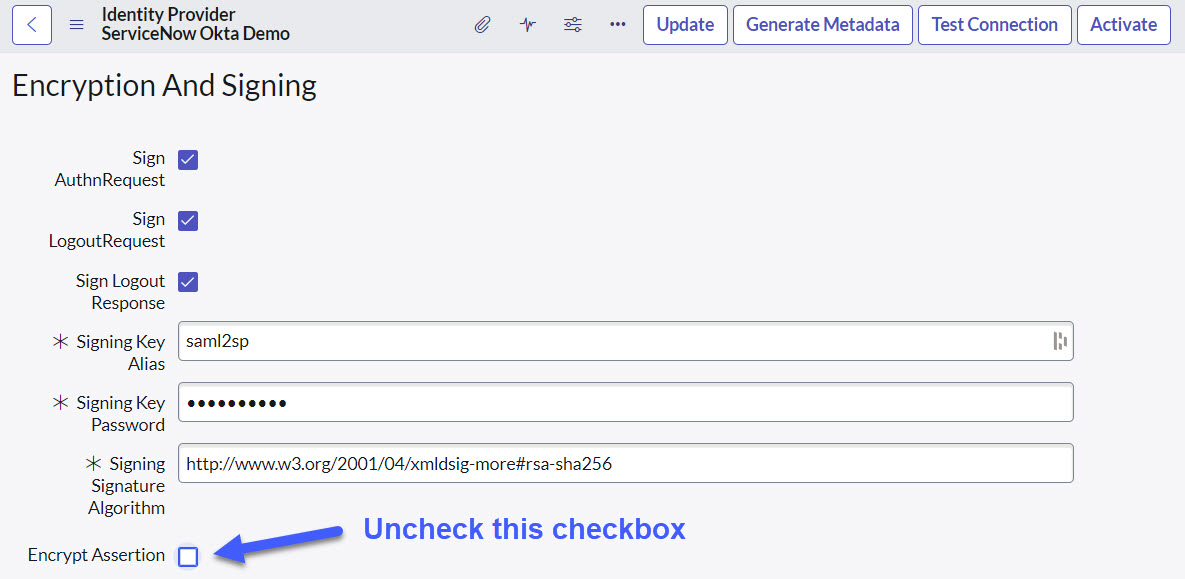
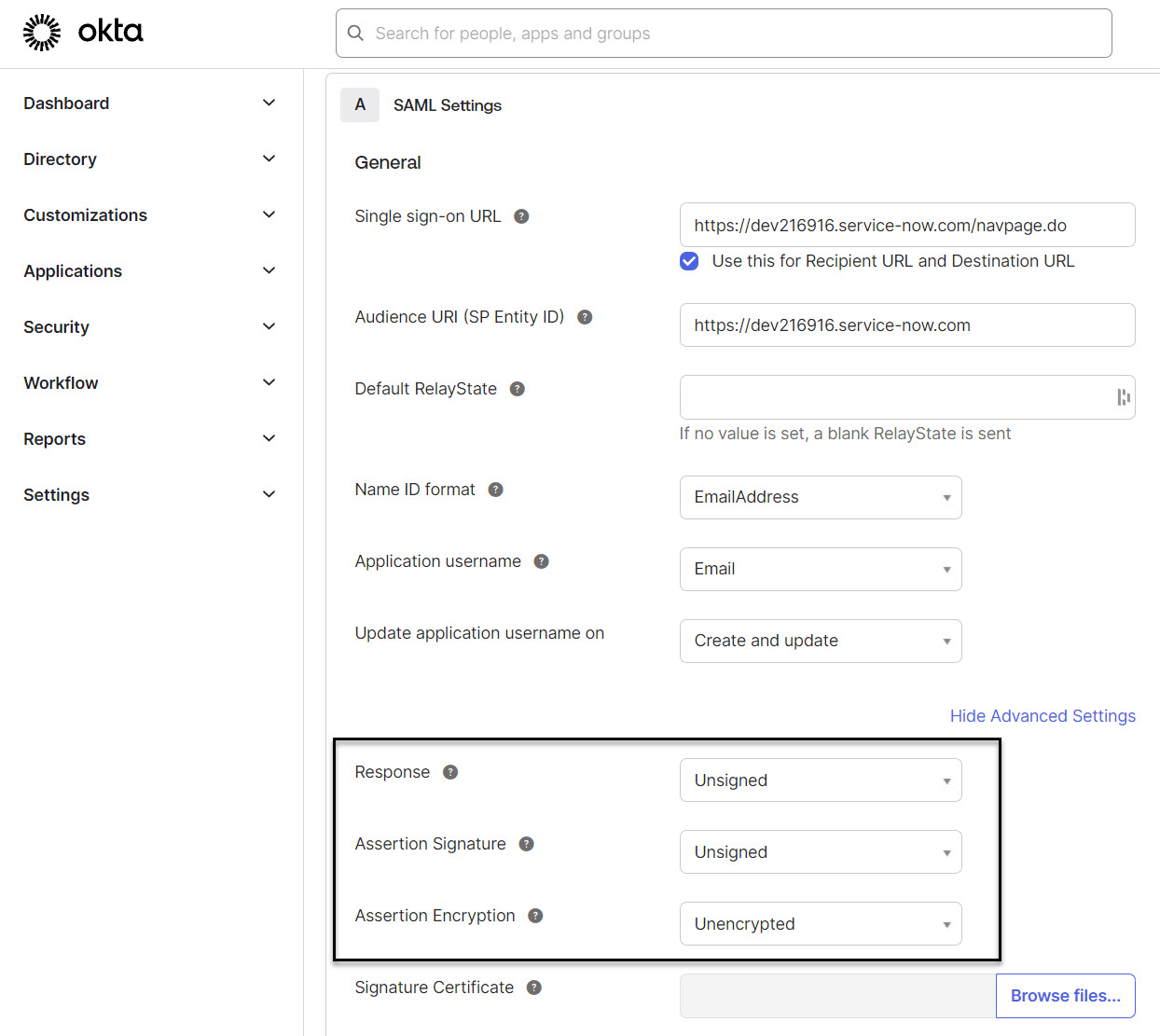
To disable encryption and signing in the SAML response from Okta or your IDP, you need to do two things:
First, update the Encryption and Signing settings of the identity provider in ServiceNow. Uncheck the “Encrypt Assertion” checkbox. This change tells ServiceNow that the SAML response is not encrypted or signed.
Second, update the settings in Okta to disable encryption and signing of the assertion.
Build the login URL and send the request to IDP
Let’s build the login URL and send the request to the IDP. We will use the same URL template discussed earlier. As a quick recap, the URL template looks like this:
<IDP-SSO-URL>?SAMLRequest=<SAML-REQUEST-URL-ENCODED>&SigAlg=<SIG-ALG>&Signature=<URL-ENCODED-SIGN>&RelayState=<URL-ENCODED-RELAY>
Since we are signing the SSO XML request, we can use the URL we generated before.
If we had unchecked “Sign AuthnRequest” in the Identity Provider record, we could skip the SigAlg and Signature URL parameters. Additionally, you need to change the settings in Okta to let Okta know that we won’t be sending signed SSO login requests.
Here is the final SSO login URL:
https://dev-06037387.okta.com/app/dev-06037387_servicenowgurudemo_1/exkhbgik0lUIiSbJO5d7/sso/saml?SAMLRequest=hVLBcoIwEP0VJncgATWSEWasHmrHVkewh16cAClmhIRmg%2B3nV9HO6MUed97bt7vv7QR4Uwctm3Z2rzbiqxNgnZ%2BmVsAuSIw6o5jmIIEp3ghgtmDp9HXJAg%2Bz1mirC10jZwogjJVazbSCrhEmFeYoC7HdLGO0t7YF5vulOAZkFJGRBxfUVfrbK3TjK35seSW8UiNnftpBKn4Wu2t18QiHNBxTTx8s79t4294hu6vuSbbqTFeKRu%2BIL34O%2B7ySB1xvFzLNX1bDkvoA2j%2BfiJzFPEbp26ygPBJFHmEeRnxIhzTPeSg%2By4DnBJecnogAnVgosFzZGAU4GLiYuniQEcxIwAbEI3j8gZz11ZUnqUqpqscW5hcSsOcsW7vrVZoh510Y6K8%2FEVAy6ZNg%2FXRzG85jYf6XCEr%2B9X%2Fi385IruX9WyS%2F&SigAlg=http%3A%2F%2Fwww.w3.org%2F2001%2F04%2Fxmldsig-more%23rsa-sha256&Signature=GokmsDs%2Fqv7RvWy%2FuJbQ6GhZBnnnpKevpqgkjk%2FfdgW%2BQ1dND9%2BF9A0yUb1sRBHXlLgrkIqQiC5LAy0nuqcxllH1PJ%2F1UMVJd6lOg6skH8WCXSZbjTpbixN%2BIpgSszVUAypZ%2Bj8DuhKxGs0CLfIHgDafPbAz5O7OwI1w1L%2FZ4BQfTTV%2BayBwvWOHpc1QGJDcuqhV3AecX%2Ff8MHh5RGQ9rgCyfOk5tmDSXOgl1pEh3%2FQDIDaNKVNPPmVj8qIEKOtn8OH0T3KMTqPOivYWnyn2TxcfdZB1z%2BMYQUvMQPqbxRrFyJxo7TX6FNAqam680UgmkKvdbc6bMTtaz8wlAqiXWIvWq8P5MgPiyTcGTSe33591NT6HCNcm9FxrpWD0NNQFC%2Fn2aT0gM8yilp77IwNtE6in8X5IxHq8FHXO6XD%2FaZk8b%2Fqd4ce%2FGKe4mZ6TCkCYlWiglWV2v1BlvaXwdM8kAbAimazC1oeAmRiDJ6GJR553pkEqDjGL5z9u78tBQoiaTzQMs92DK5Z%2B9uPO0oxkvB%2FNAFP7CFExXz2JKlO%2B8wNrdoecDX%2F4duZIAGCKihQwkcqwjE7VXzxM8x8rH1XbLI8telN%2FlMkMiza2T3SJSTGpp11ojfAKcDXdSdawbLnnyYhzEK6r2g9sI0zIdp%2BoTQ5VJm5oQAJ642SQseHYjDY%3D&RelayState=https%3A%2F%2Fdev216916.service-now.com%2Fnavpage.do
SAML Response XML Example
Here is an example of a SAML Response XML captured during the process:
<?xml version="1.0" encoding="UTF-8"?>
<saml2p:Response
    Destination="https://dev216916.service-now.com/navpage.do"
    ID="id18313862044489861863811899"
    InResponseTo="SNC8d80819049bcd8752c34b09f6067c431"
    IssueInstant="2024-07-13T09:39:41.088Z"
    Version="2.0"
    xmlns:saml2p="urn:oasis:names:tc:SAML:2.0:protocol">
    <saml2:Issuer
        Format="urn:oasis:names:tc:SAML:2.0:nameid-format:entity"
        xmlns:saml2="urn:oasis:names:tc:SAML:2.0:assertion">http://www.okta.com/exkhbgik0lUIiSbJO5d7
    </saml2:Issuer>
    <saml2p:Status>
        <saml2p:StatusCode
            Value="urn:oasis:names:tc:SAML:2.0:status:Success"/>
    </saml2p:Status>
    <saml2:Assertion
        ID="id18313862046302591638818707"
        IssueInstant="2024-07-13T09:39:41.088Z"
        Version="2.0"
        xmlns:saml2="urn:oasis:names:tc:SAML:2.0:assertion">
        <saml2:Issuer
            Format="urn:oasis:names:tc:SAML:2.0:nameid-format:entity">http://www.okta.com/exkhbgik0lUIiSbJO5d7
        </saml2:Issuer>
        <saml2:Subject>
            <saml2:NameID
                Format="urn:oasis:names:tc:SAML:1.1:nameid-format:emailAddress">harry.potter@gmail.com
            </saml2:NameID>
            <saml2:SubjectConfirmation
                Method="urn:oasis:names:tc:SAML:2.0:cm:bearer">
                <saml2:SubjectConfirmationData
                    InResponseTo="SNC8d80819049bcd8752c34b09f6067c431"
                    NotOnOrAfter="2024-07-13T09:44:41.088Z"
                    Recipient="https://dev216916.service-now.com/navpage.do"/>
            </saml2:SubjectConfirmation>
        </saml2:Subject>
        <saml2:Conditions
            NotBefore="2024-07-13T09:34:41.088Z"
            NotOnOrAfter="2024-07-13T09:44:41.088Z">
            <saml2:AudienceRestriction>
                <saml2:Audience>https://dev216916.service-now.com</saml2:Audience>
            </saml2:AudienceRestriction>
        </saml2:Conditions>
        <saml2:AuthnStatement
            AuthnInstant="2024-07-13T09:39:41.088Z"
            SessionIndex="SNC8d80819049bcd8752c34b09f6067c431">
            <saml2:AuthnContext>
                <saml2:AuthnContextClassRef>urn:oasis:names:tc:SAML:2.0:ac:classes:PasswordProtectedTransport</saml2:AuthnContextClassRef>
            </saml2:AuthnContext>
        </saml2:AuthnStatement>
        <saml2:AttributeStatement>
            <saml2:Attribute
                Name="FirstName"
                NameFormat="urn:oasis:names:tc:SAML:2.0:attrname-format:unspecified">
                <saml2:AttributeValue
                    xmlns:xs="http://www.w3.org/2001/XMLSchema"
                    xmlns:xsi="http://www.w3.org/2001/XMLSchema-instance"
                    xsi:type="xs:string">Harry
                </saml2:AttributeValue>
            </saml2:Attribute>
            <saml2:Attribute
                Name="LastName"
                NameFormat="urn:oasis:names:tc:SAML:2.0:attrname-format:unspecified">
                <saml2:AttributeValue
                    xmlns:xs="http://www.w3.org/2001/XMLSchema"
                    xmlns:xsi="http://www.w3.org/2001/XMLSchema-instance"
                    xsi:type="xs:string">Potter
                </saml2:AttributeValue>
            </saml2:Attribute>
            <saml2:Attribute
                Name="Email"
                NameFormat="urn:oasis:names:tc:SAML:2.0:attrname-format:unspecified">
                <saml2:AttributeValue
                    xmlns:xs="http://www.w3.org/2001/XMLSchema"
                    xmlns:xsi="http://www.w3.org/2001/XMLSchema-instance"
                    xsi:type="xs:string">harry.potter@gmail.com
                </saml2:AttributeValue>
            </saml2:Attribute>
        </saml2:AttributeStatement>
    </saml2:Assertion>
</saml2p:Response>
Conclusion
Understanding how SAML 2.0 SSO works in ServiceNow is essential for developers to ensure secure and seamless user authentication. In a world where privacy and security are of utmost importance, grasping the principles of encryption and signing is crucial. This knowledge not only aids in troubleshooting and optimizing SSO implementations but also enhances the ability to secure data transmission and implement robust authentication mechanisms. Mastering SAML 2.0 SSO equips developers with the skills needed to navigate and implement various security protocols in ServiceNow, contributing to a more secure and efficient environment.
Next Steps: OpenID Connect
To further enhance your understanding of authentication and security in ServiceNow, keep an eye out for our upcoming article on OpenID Connect. OpenID Connect offers an additional layer of security and flexibility for user authentication, making it a valuable next step in mastering identity management within ServiceNow.

Date Posted:
July 24, 2024
Share This:


Related Posts
Fresh Content
Direct to Your Inbox
Just add your email and hit subscribe to stay informed.