
Applying the Sync/Async Pattern in Flow Designer
Introduction
Here is the scenario: you need to use up-to-date data from a record in a transaction that may take a long time to process, but you don’t want the user to have to wait for that transaction in the UI. You may, for example, need to send a Comment or Work Note to another system through an API call. That can take a few seconds or more, and it is possible that multiple comments could be entered by the time you send the API call, all the while multiple API calls are stacking up. Let’s see how we can use a Flow Designer Sync/Async design pattern to optimize user experience.
One way to handle this is by accomplishing part of this action synchronously within the “Business Rule Loop” by logging an Event and stashing the data you need (for example, the Comment or Work Note) in an event parameter so that it is up to date at the time of the transaction, and then processing the longer portion asynchronously outside of the client transaction using a Script Action. This Sync/Async design pattern ensures that you are capturing the data you want to send and returning control to the User as quickly as possible while still being able to send that “correct” data regardless of how long it takes to process to the other system.
Is it possible to accomplish this same pattern using low- or no-code capabilities with Flow Designer? It is!
If you are not familiar with Flows and Subflows, you may want to check out the documentation first.
Foreground Flows for Synchronous Processing
By default, Flows are set to run in the background so that they do not slow down the user experience. This means that they do not run as part of the Before/After Business Rule transaction (the Business Rule Loop mentioned previously), but instead run outside of the transaction. There is an option to run Flows in the Foreground, which will run them during the Business Rule Loop and make them part of the Client transaction. It is important to make these types of Flows as efficient as possible to avoid negatively impacting the user experience.
One benefit for running Flows in this way is that you have access to the Trigger Record at runtime, so the data the user changed is available to you immediately. If you try to retrieve a Journal Entry asynchronously, it is possible that another entry has been made by the time you try to retrieve it, so you cannot guarantee that you have the right data when the asynchronous code executes.
Our first requirement, getting the “right” Comment or Work Note, is met by retrieving it in a Foreground Flow. Let’s try this out by creating a Flow that will run in the Foreground when an Incident has a new Comment and log the Comment. We will add to this later, but for now we just want to get this up and running.
Flow name: Sync Flow on Incident Comment
Trigger: Record > Created or Updated
Table: Incident
Condition: Active is true AND Additional comments changes
Run Trigger: For each unique change
Advanced Options
Where to run the flow: Run flow in foreground
ACTIONS
- Action: Log
- Level: Info
- Message (toggle scripting for this input):
// Retrieve the most recent Comment from the Incident
return "From the Flow:\n\n" + fd_data.trigger.current.comments.getJournalEntry(1);
This log will show up in the system log table with a “Source” value of “Flow Designer.” Activate this flow and test it out by adding a Comment to any active Incident and checking the logs.
Note that you could create a custom Action to retrieve the Journal Entry from the Incident to provide a no-code method to retrieve the data for future use, but for now we’ll stick with using a script in the Message field to keep things simple.
Great! Now we can get the comment, but how do we do something with it without having to make the user wait until we are done?
Subflow With Inputs
We will use a Subflow to handle the asynchronous portion. To do this, we need to pass our synchronously obtained data to the Subflow so that it does not have to retrieve potentially newer information when it runs. We’ll cover how to make this Subflow run asynchronously from the Flow a bit later.
For this example, we will simulate a potentially slow external API call by adding a wait timer to our Subflow.
First, we create a new Subflow and add inputs for the Incident record and the Comment that we want to handle in the API call. This ensures that we have access to the comment that was entered at the time we trigger the Subflow and that we are not retrieving a more recently entered comment when the Subflow executes.
Next, we log a timestamp for when the Subflow begins processing. Then we add a 10-second Wait (you can increase this if you want, to allow yourself time to enter multiple Comments while the Subflow waits to execute during your testing). Finally, we log out the Comment from the Subflow Input. We can also add another log step where we repeat the script we used to retrieve the most recent Comment from the Incident to see if it differs from the Comment we received as a Subflow Input.
Subflow name: Async Subflow Handle Incident Comment
INPUTS & OUTPUTS
- First Input
- Label: Incident
- Name: incident
- Type: Reference.Incident
- Mandatory: True
- Second Input
- Label: Comment
- Name: comment
- Type: String
- Mandatory: True
ACTIONS
- Action: Log
- Level: Info
- Message: Async Subflow, before Wait.
- Flow Logic: Wait for a duration of time
- Duration Type: Explicit duration
- Wait for: 10s
- Action: Log
- Level: Info
- Message: From subflow, after wait. Input comment: [data pill] Subflow Inputs > Comment [data pill]
- Action: Log
- Level: Info
- Message (toggle scripting for this input):
// Log out the most recent journal entry from the Incident
return 'From subflow, after wait. Most recent journal entry:\n\n' + fd_data.subflow_inputs.incident.comments.getJournalEntry(1);
Notice that we do not create any Subflow outputs. Because we plan to run this asynchronously, the Flow that calls our Subflow will no longer be running when the Subflow completes and will not be able to do anything with any outputs. Additionally, any error handling for the actions carried out by the Subflow needs to be contained within the Subflow and not passed to the calling Flow for additional handling. For example, you may usually pass the API response status and body back to the calling Flow to check for and respond to any errors (like creating an Incident), but you will now need to do this within the Subflow.
Publish the Subflow to make it available for use. We now have the Asynchronous component of our Flow Designer Sync/Async design pattern.
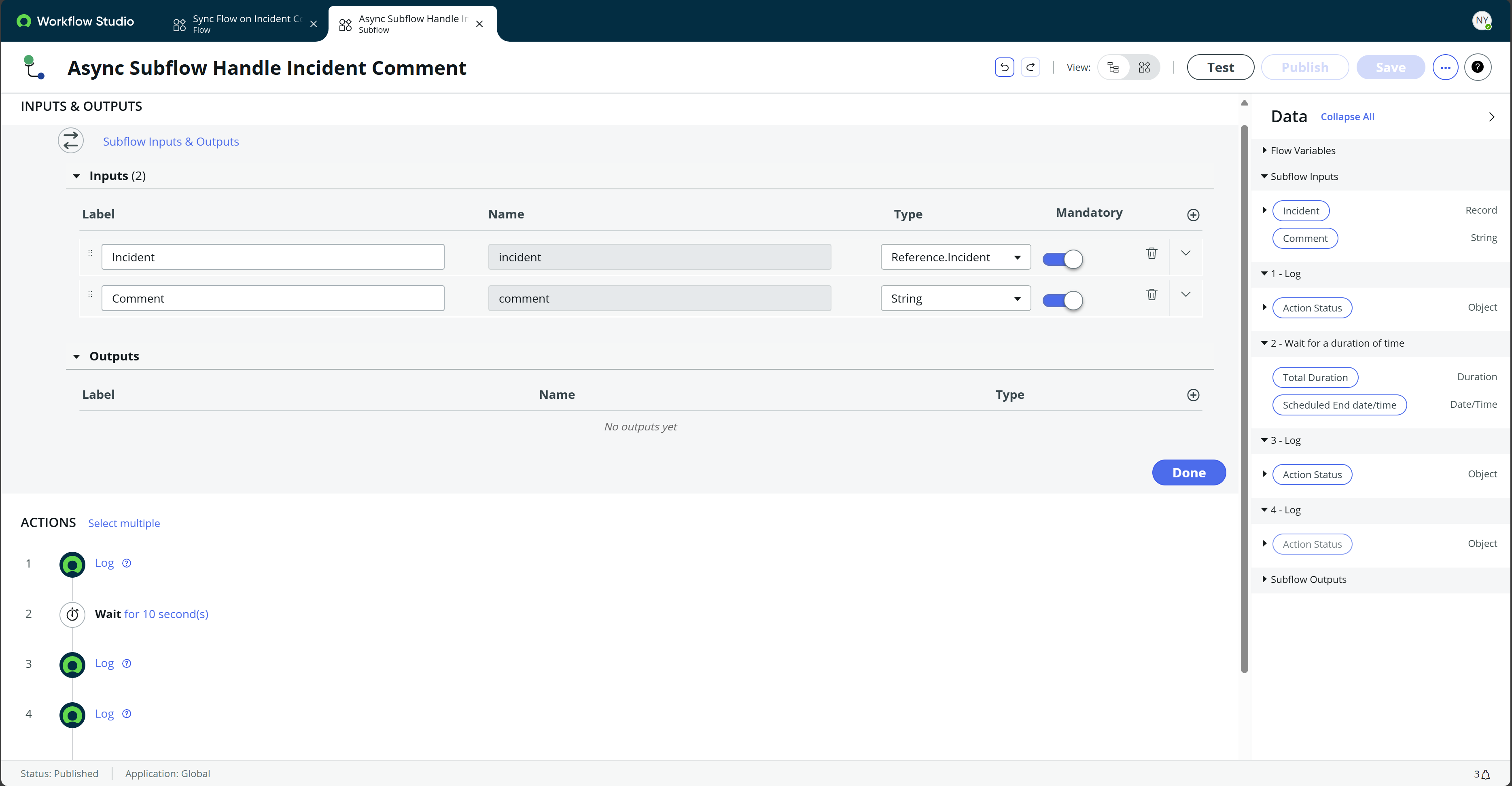
Final Subflow, with Inputs shown in detail.
Call the Subflow from the Flow
We now have a Subflow to handle the Comment, but we need to add it to the Flow to complete our Flow Designer Sync/Async design. Add a new step to the Flow, select the “Subflow” option, and then locate the Subflow you created. Set the Inputs to be the Incident trigger record and the most recent Comment (the same value you passed into the Log step, which we scripted).
To make this Subflow run Asynchronously, make sure that the “Wait for Completion” checkbox is unchecked. Doing so will allow the Flow to complete and immediately return control to the Client transaction and complete the remainder of the Business Rule Loop without waiting for the Subflow.
For testing, we will add another Log step after we call the Subflow to observe the sequence of events.
Your Flow should now look like this:
Flow name: Sync Flow on Incident Comment
Trigger: Record > Created or Updated
Table: Incident
Condition: Active is true AND Additional comments changes
Run Trigger: For each unique change
Advanced Options
Where to run the flow: Run flow in foreground
ACTIONS
- Action: Log
- Level: Info
- Message (toggle scripting for this input):
// Retrieve the most recent Comment from the Incident
return "From the Flow:\n\n" + fd_data.trigger.current.comments.getJournalEntry(1);
- Subflow: Async Subflow Handle Incident Comment
- Wait For Completion: False
- Incident: [data pill] Trigger > Incident Record [data pill]
- Comment (toggle scripting for this input):
// Return the most recent journal entry
return fd_data.trigger.current.comments.getJournalEntry(1);
- Action: Log
- Level: Info
- Message: From sync flow, after calling Subflow.
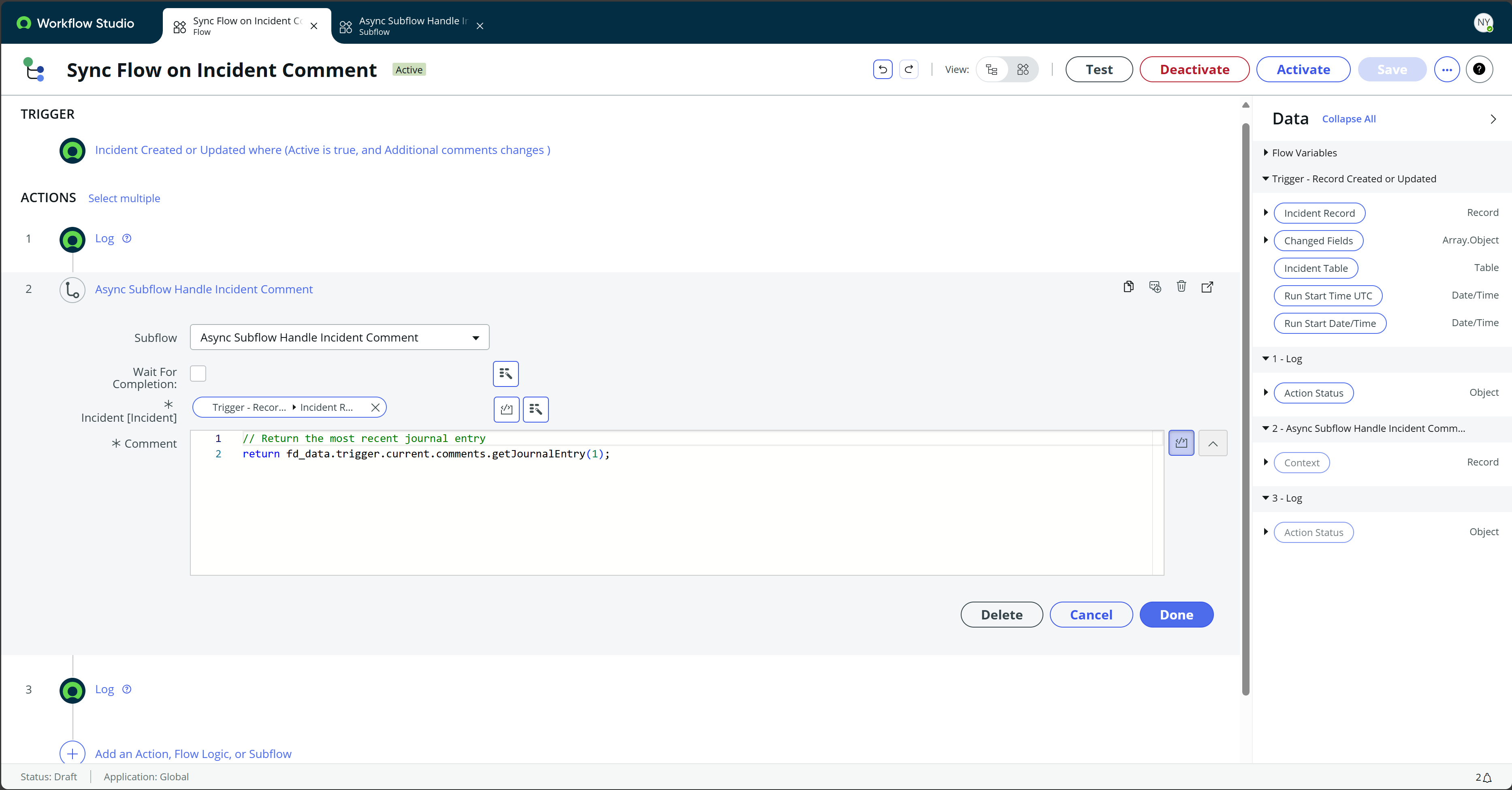
Final Flow, showing the values passed to the Subflow inputs in detail.
Summary
Now we have seen how to implement a Flow Designer Sync/Async design pattern that would normally be accomplished using Events and Script Actions. This gives us another tool to use for optimizing the User Experience while also ensuring access to accurate data for long-running asynchronous transactions.

Date Posted:
July 18, 2024
Share This:



Fresh Content
Direct to Your Inbox
Just add your email and hit subscribe to stay informed.